ServiceNow integration
CloudCADI offers a seamless integration with ServiceNow, enabling direct notification of recommendations to your engineering team through a single action button.
Step 1 - ServiceNow setup
-
If you don’t have an existing app, create a new one in ServiceNow.
-
Create a table with the following columns.
-
If you already have an app and table, ensure these columns are added to your existing table.
Columns:
- resource_name
- short_description
- state
- description
- user_id
- data_source
-
data_source_id
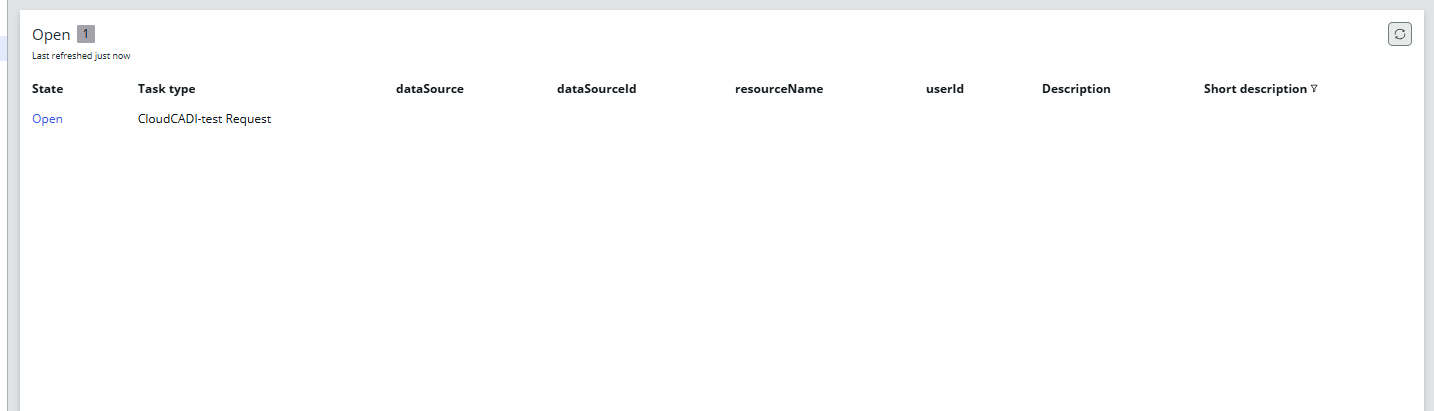
Using REST API Explorer to Insert or Retrieve Data
-
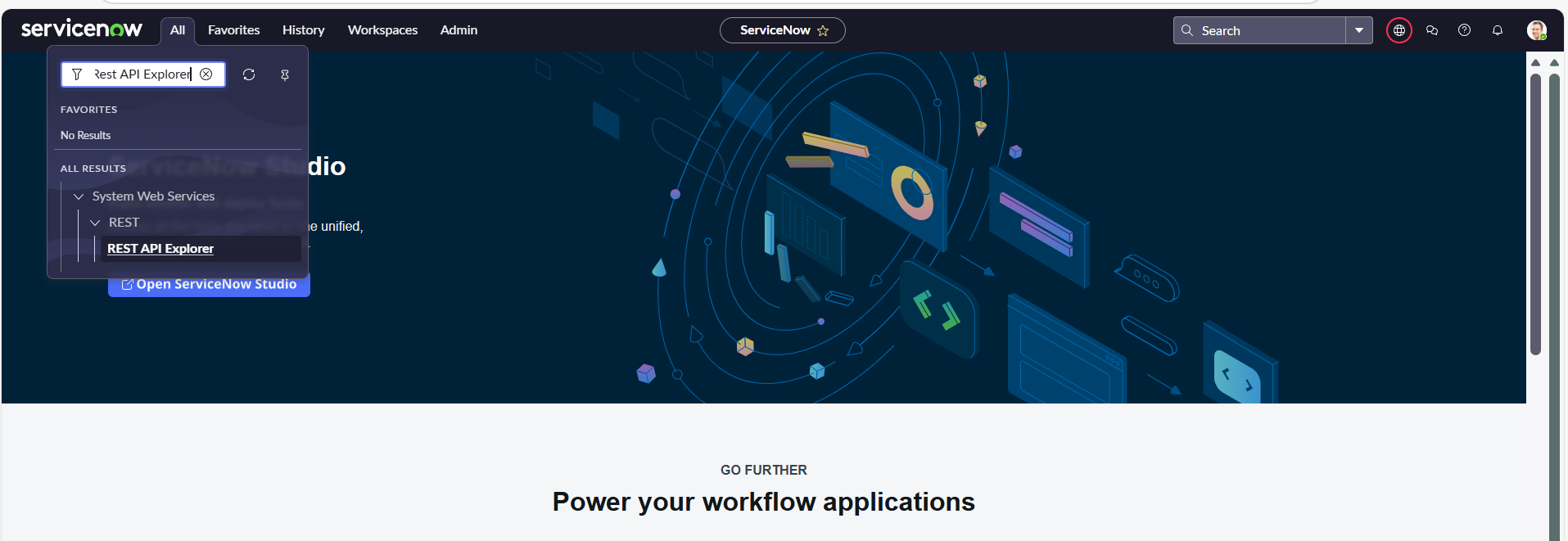
Open the REST API Explorer in ServiceNow.
-
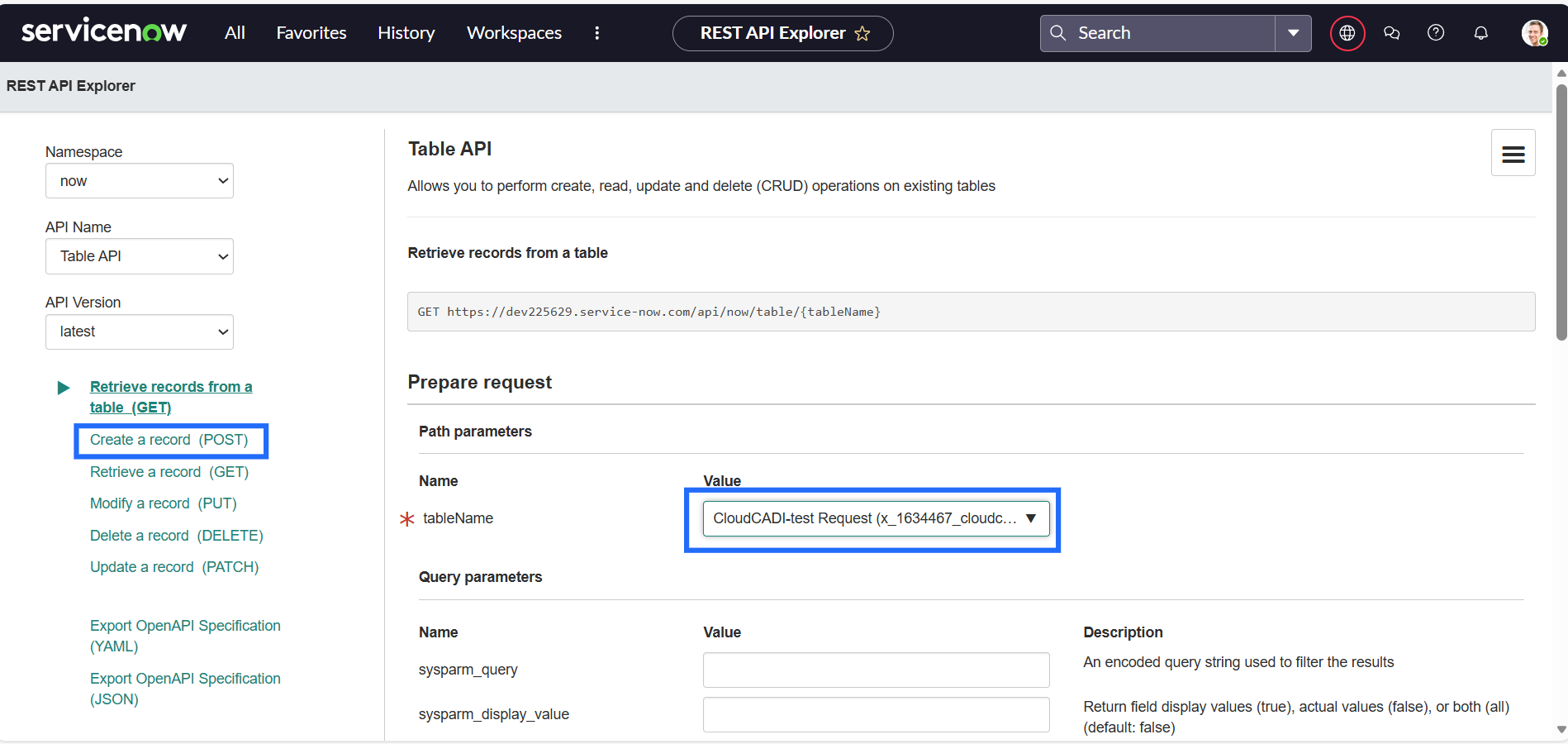
Click on Create a record(POST) and Select the table you created or select existing table.
-
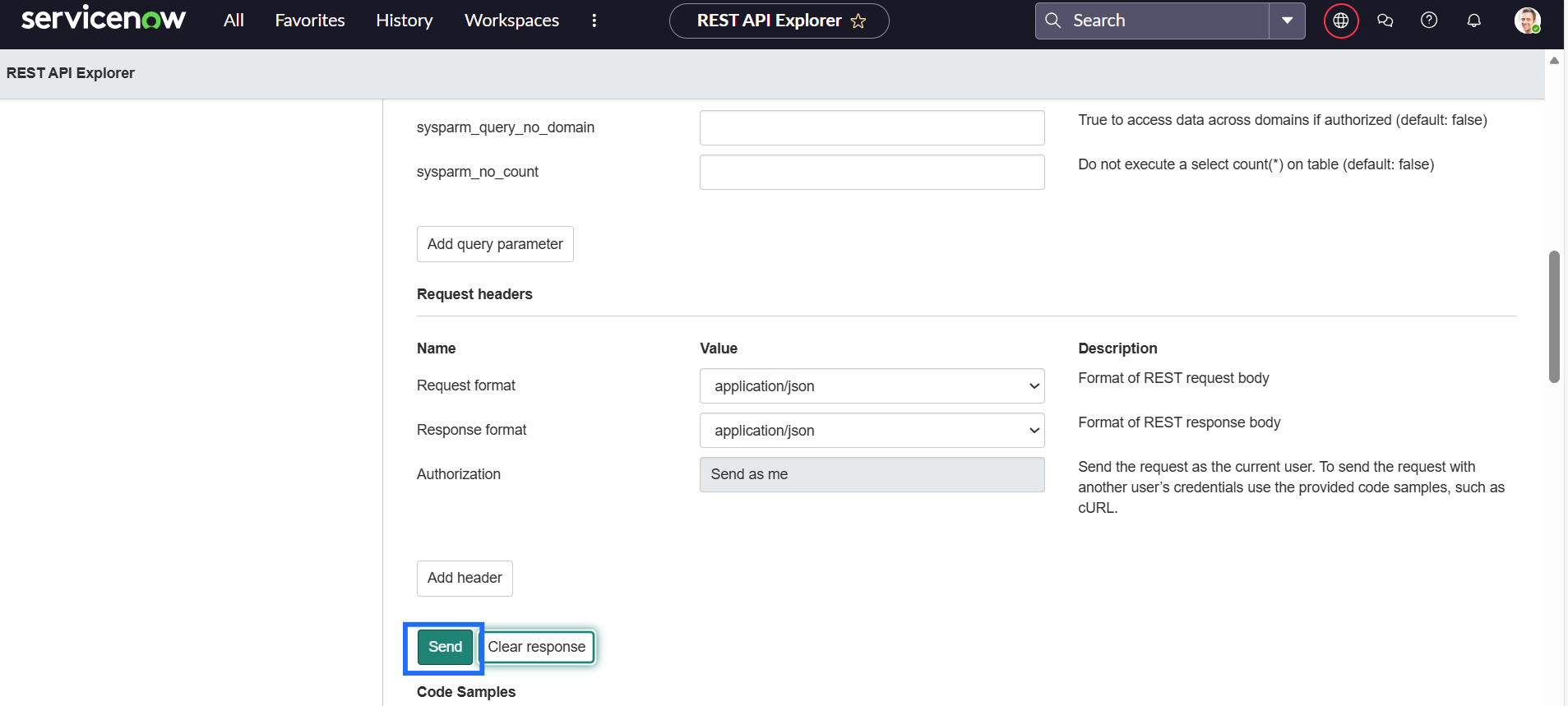
Click Send to submit the request.
-
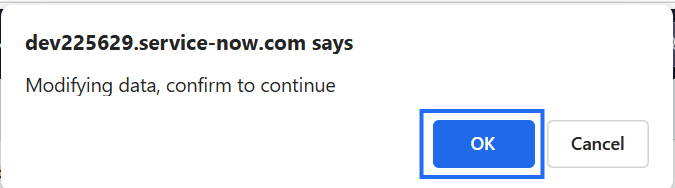
A popup will appear, click OK to continue.
-
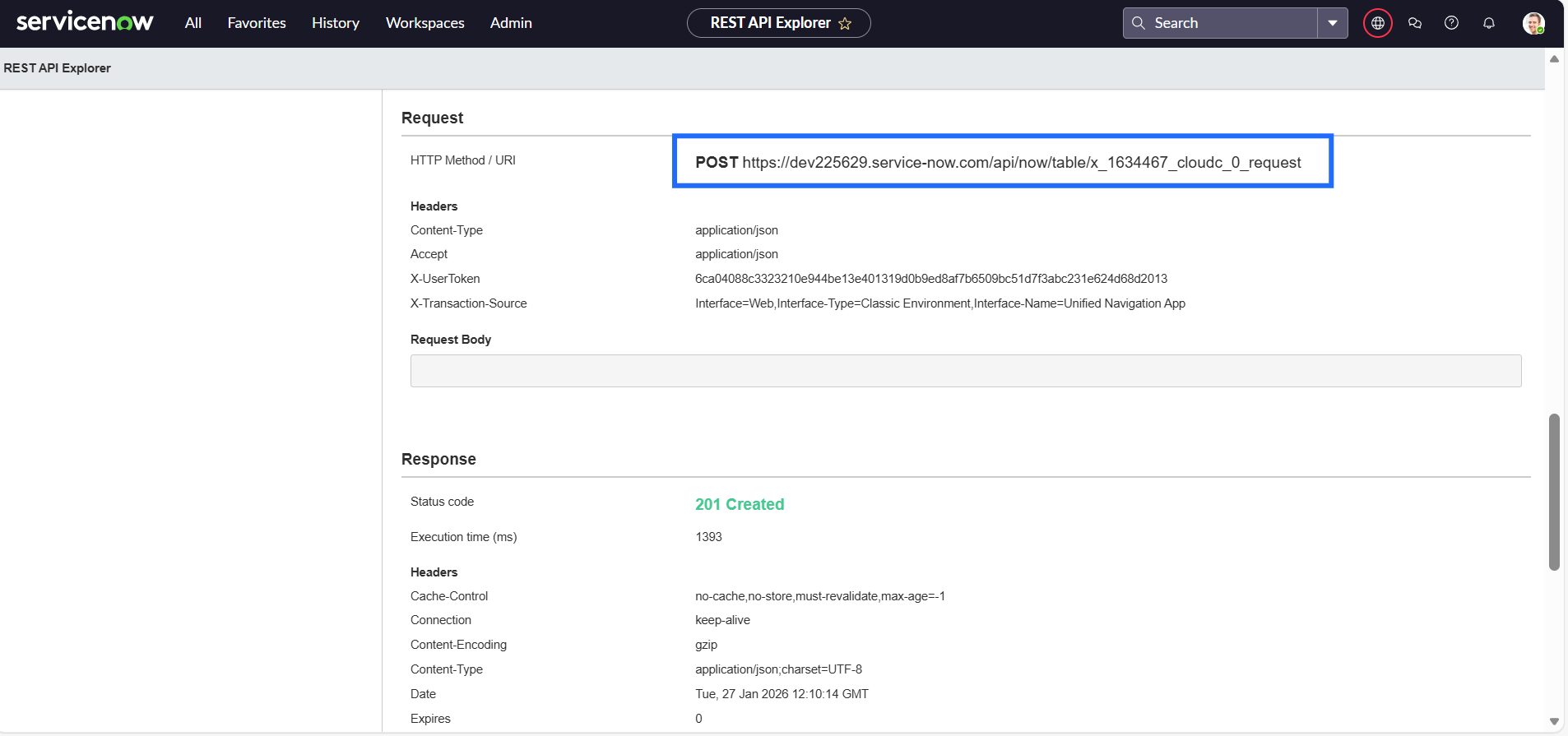
You will receive a response with the URL.
-
Copy the generated POST URL for further use.
Step 2 - CloudCADI setup
-
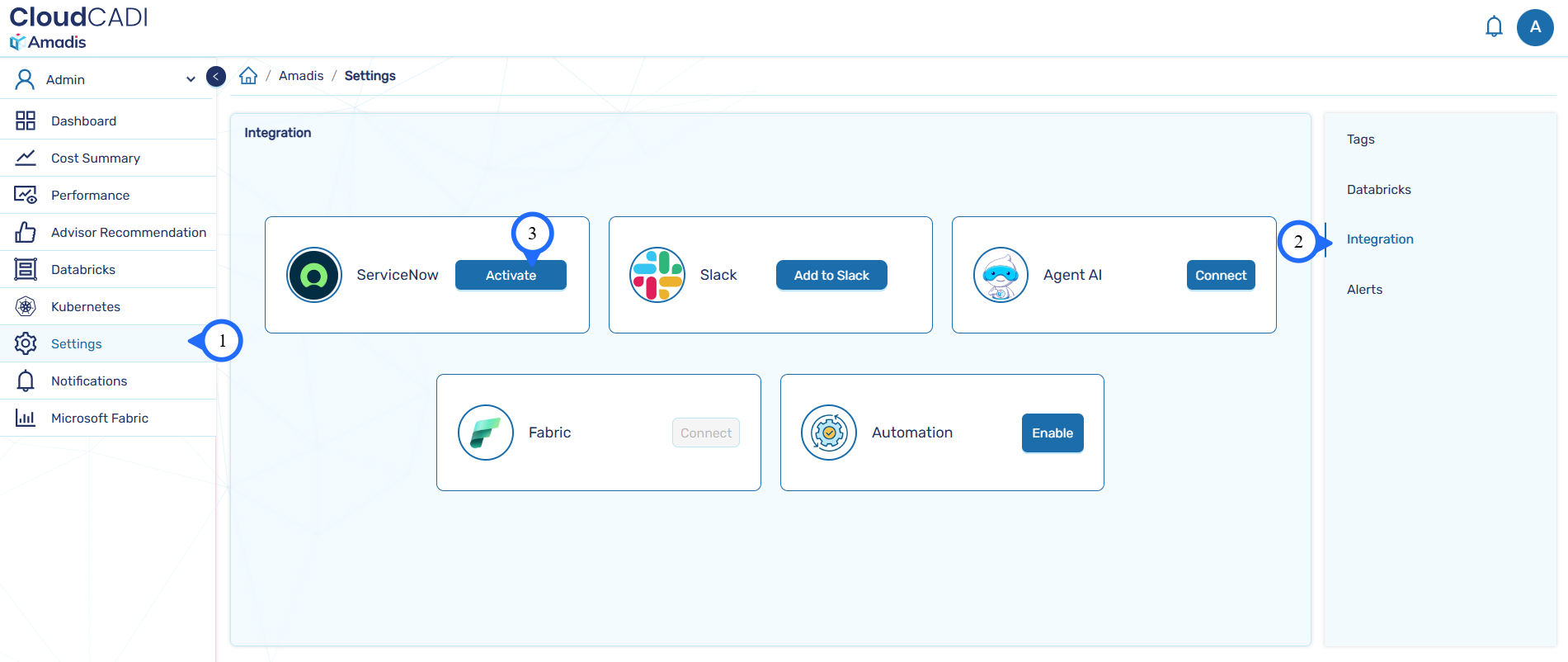
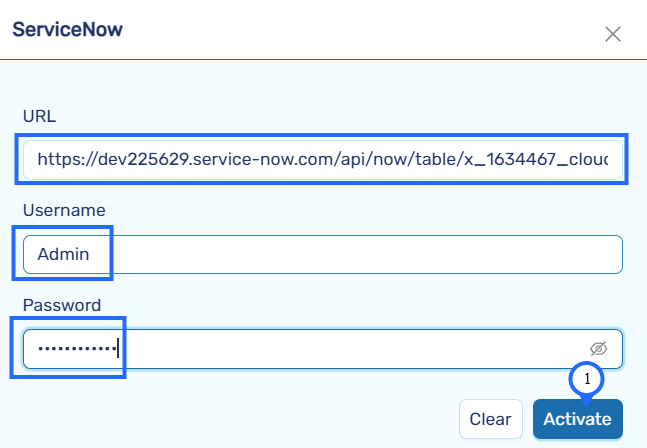
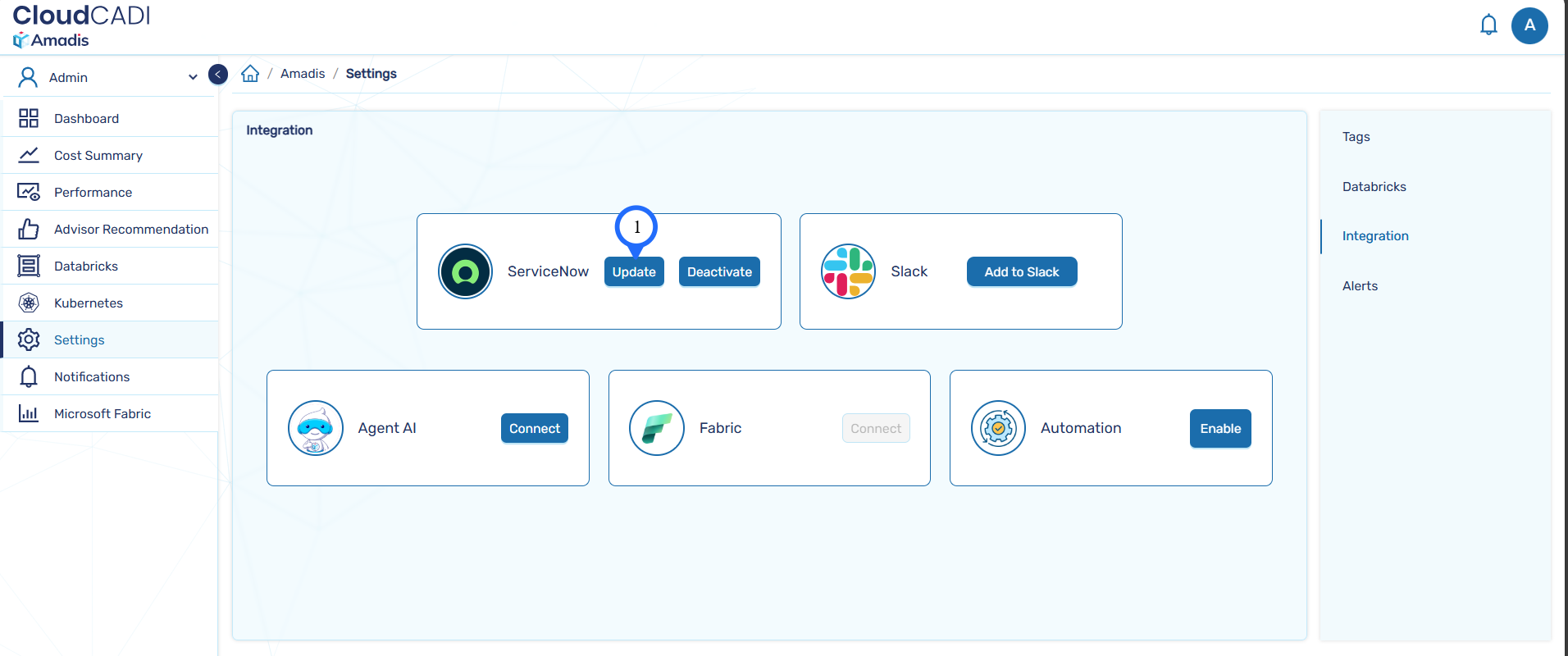
To integrate ServiceNow, Settings → Integration → Activate.
-
Enter the URL you have got in POST method request.
-
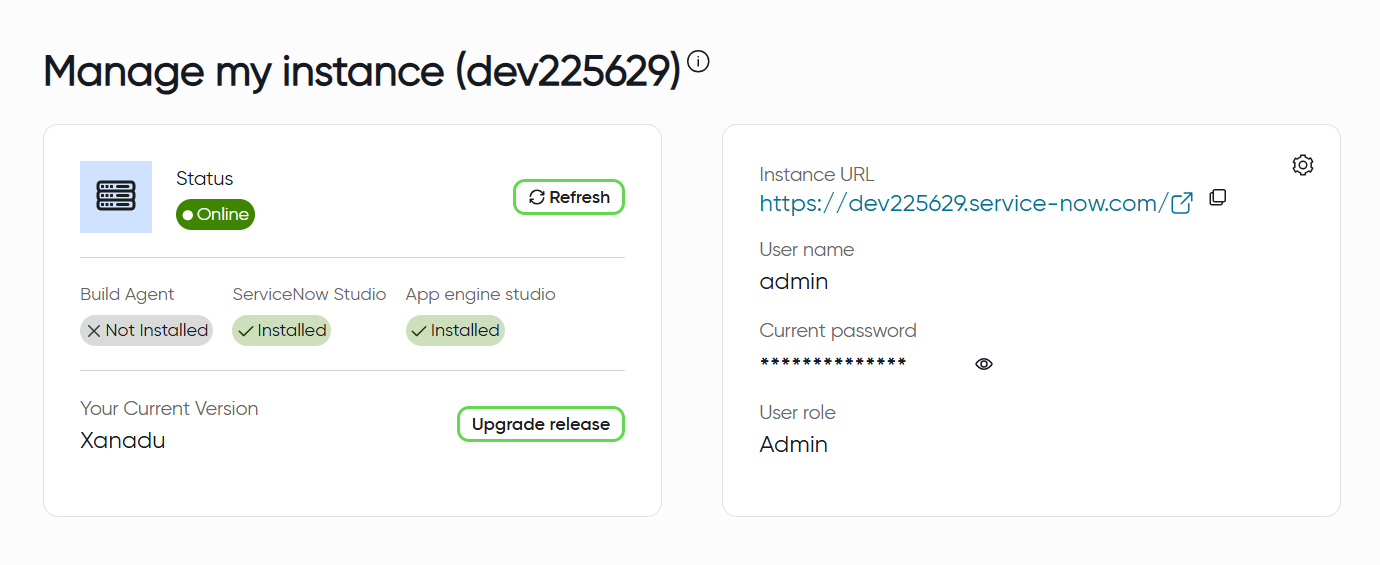
Provide the Username and Password received from ServiceNow. If you have forgotten your credentials, visit the ServiceNow Developer Website, click on your profile icon, and select Manage Instance Password to retrieve your credentials.
-
Enter the URL, Username, password and click Activate.
-
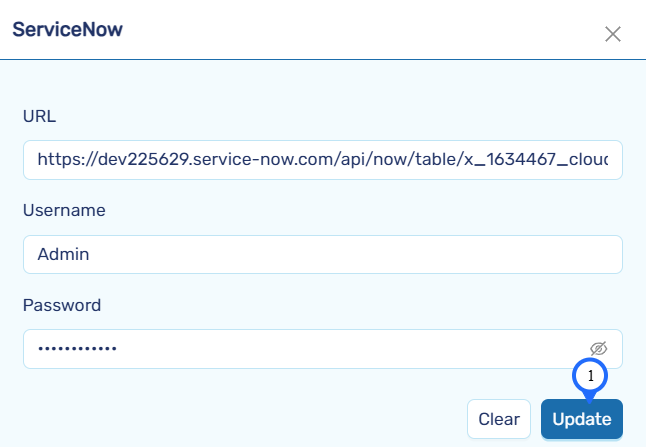
Update the details by using the update button, Enter the details and click Update.
-
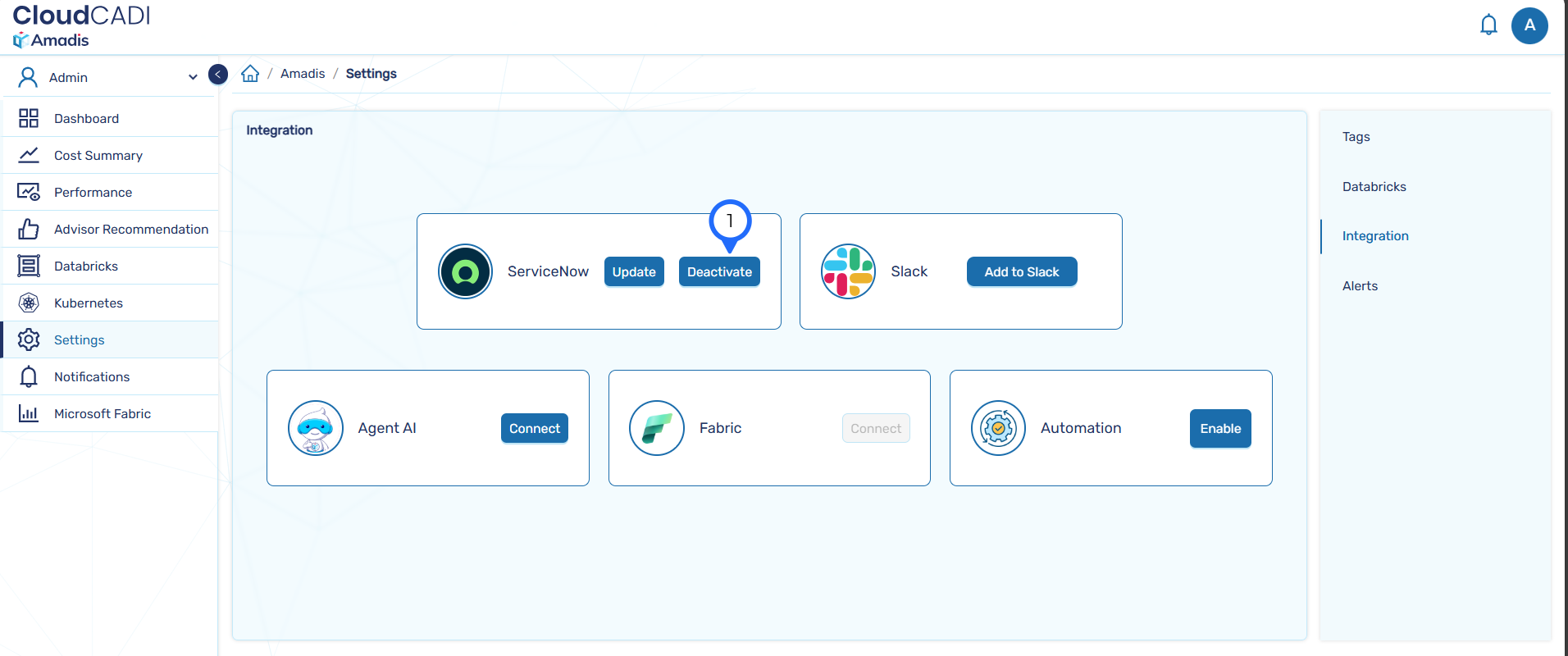
Deactivate the ServiceNow instance by using the Deactivate button.
-
To verify the ServiceNow Integration, Go to the CloudCADI Recommendation page and click the Create Ticket button.
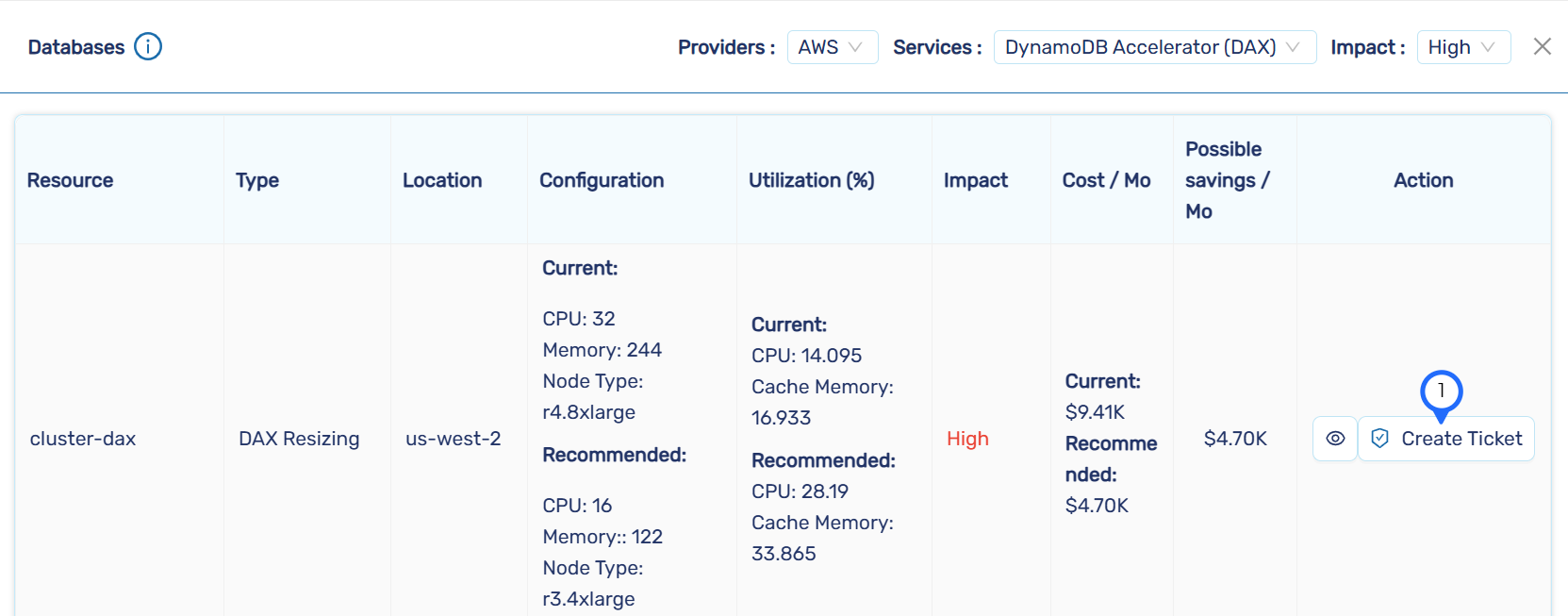
-
A small pop-up will appear confirming that a ticket has been created.
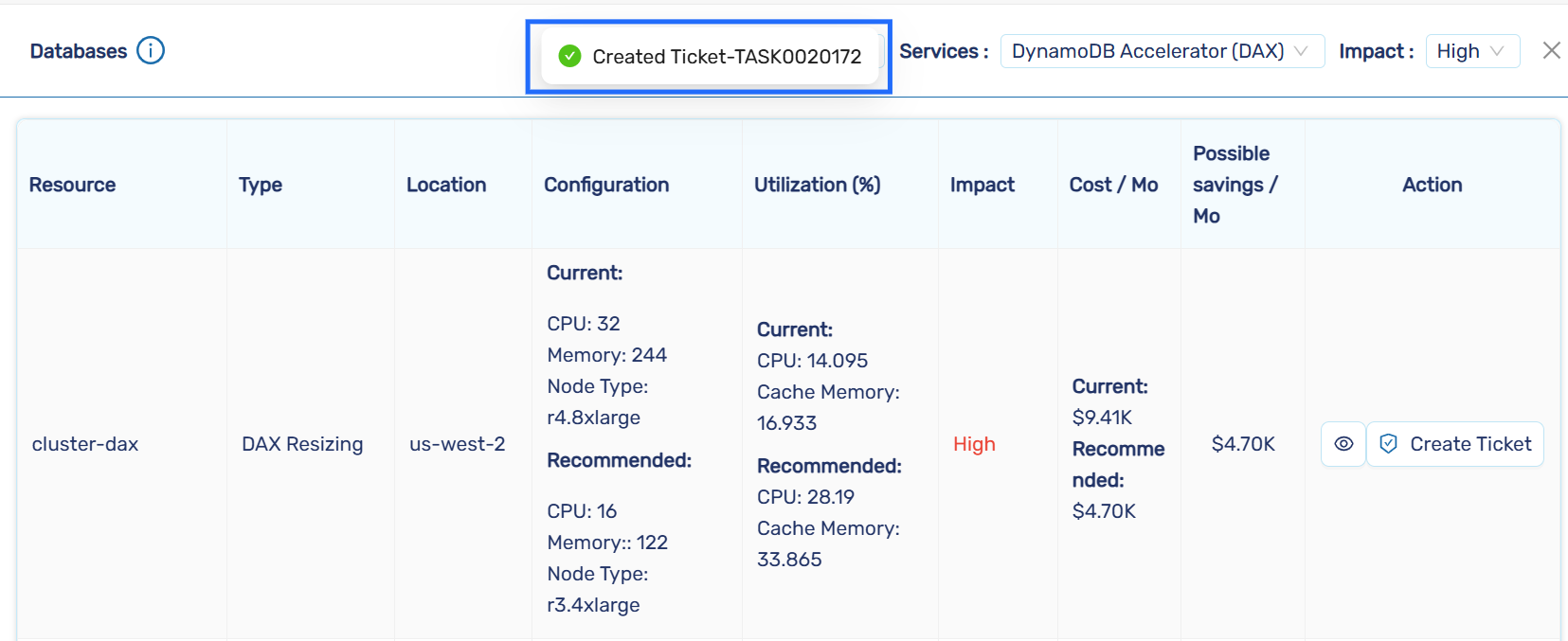
-
The data is now successfully sent to the corresponding table in ServiceNow.
