Slack
Slack Integration
CloudCADI integrates with Slack to deliver cost variance & user created alerts and daily reports on the top three cost utilizations, helping teams stay informed and optimize expenses.
6.4.1 Integrate Slack with CloudCADI
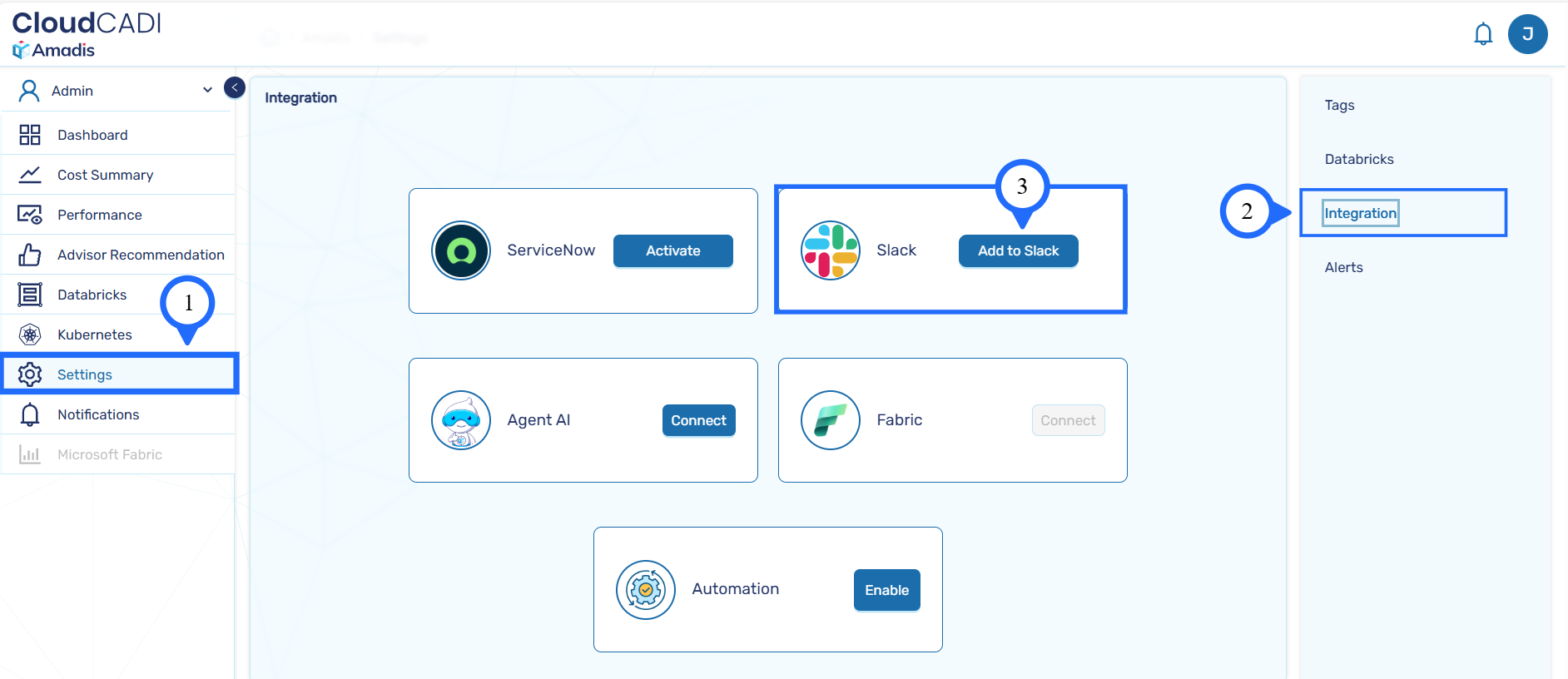
- To integrate slack, Go to CloudCADI Settings and click Integrations and click Add to Slack.
-
You will be redirected to the Slack authorization page.
-
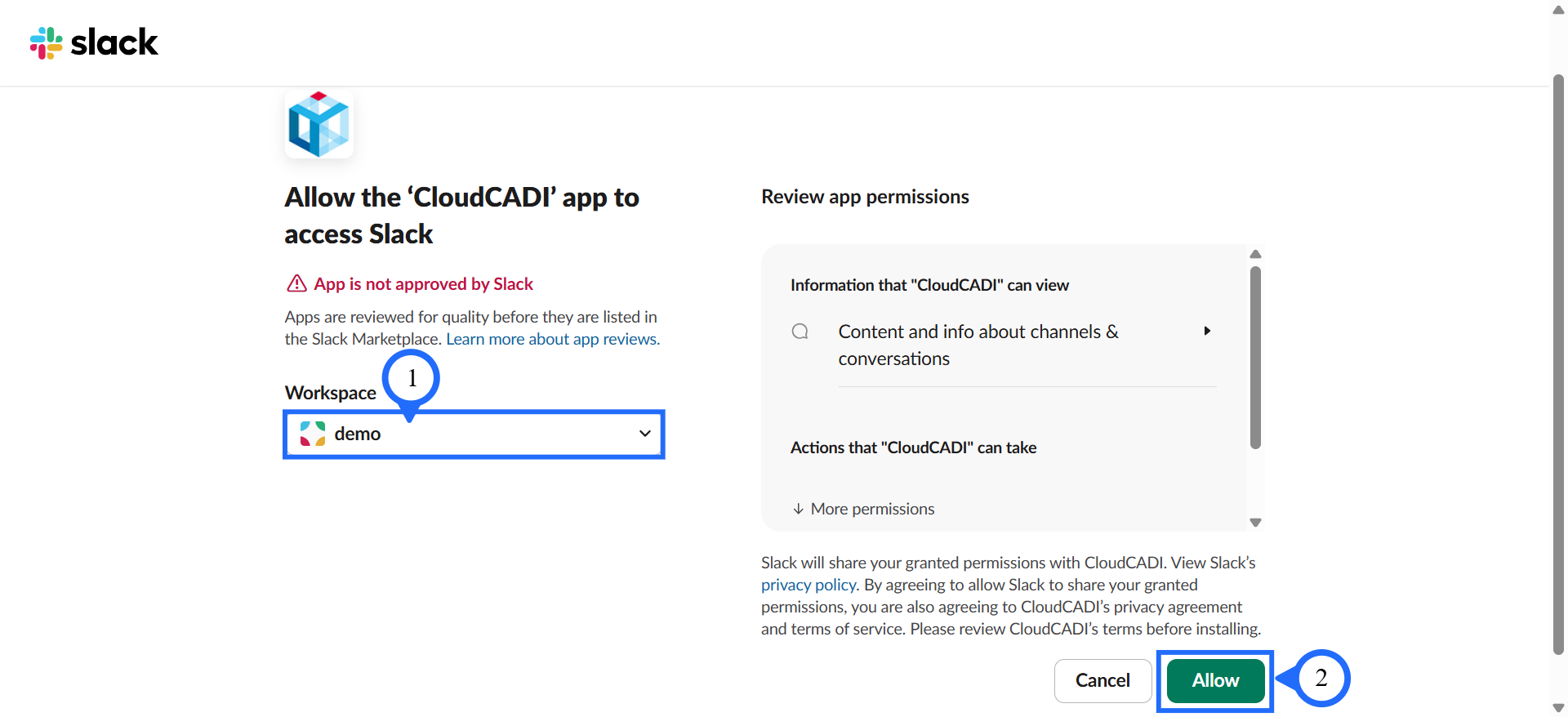
In the slack authorization page, select your Workspace and click Allow.
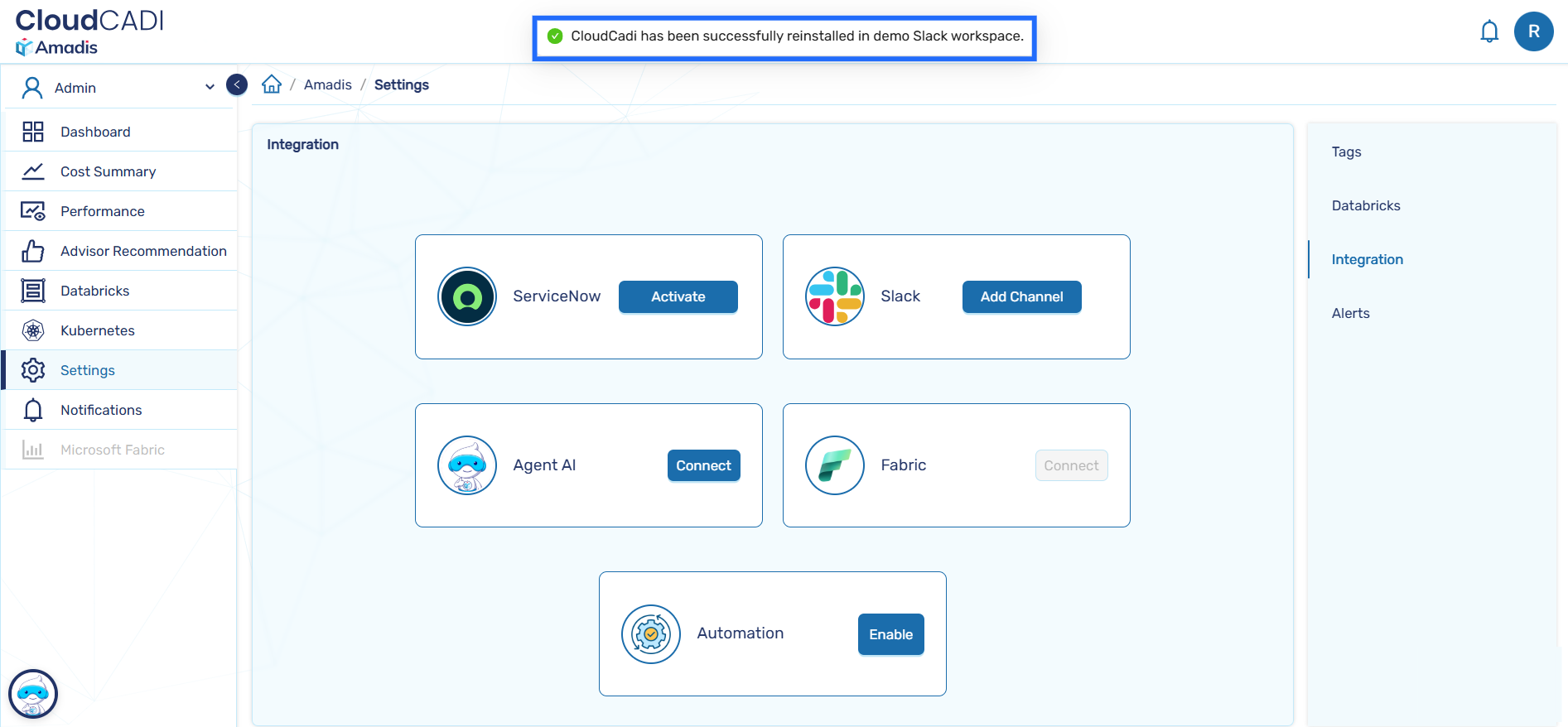
- After successful authorization, you are redirected back to CloudCADI, where a confirmation message pops up at the top of the Settings page.
- Select the Slack channels that will receive CloudCADI alert messages.The CloudCADI app must be invited to each selected channel.
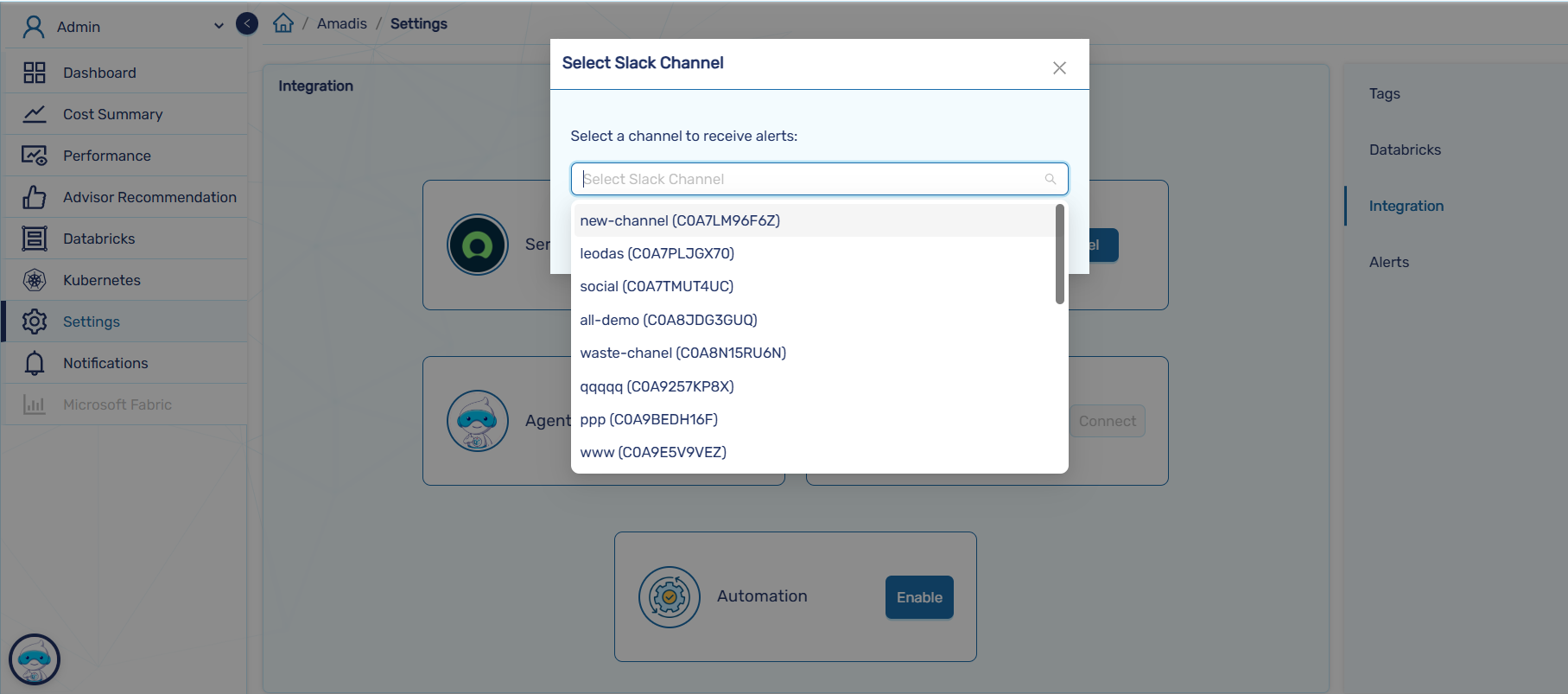
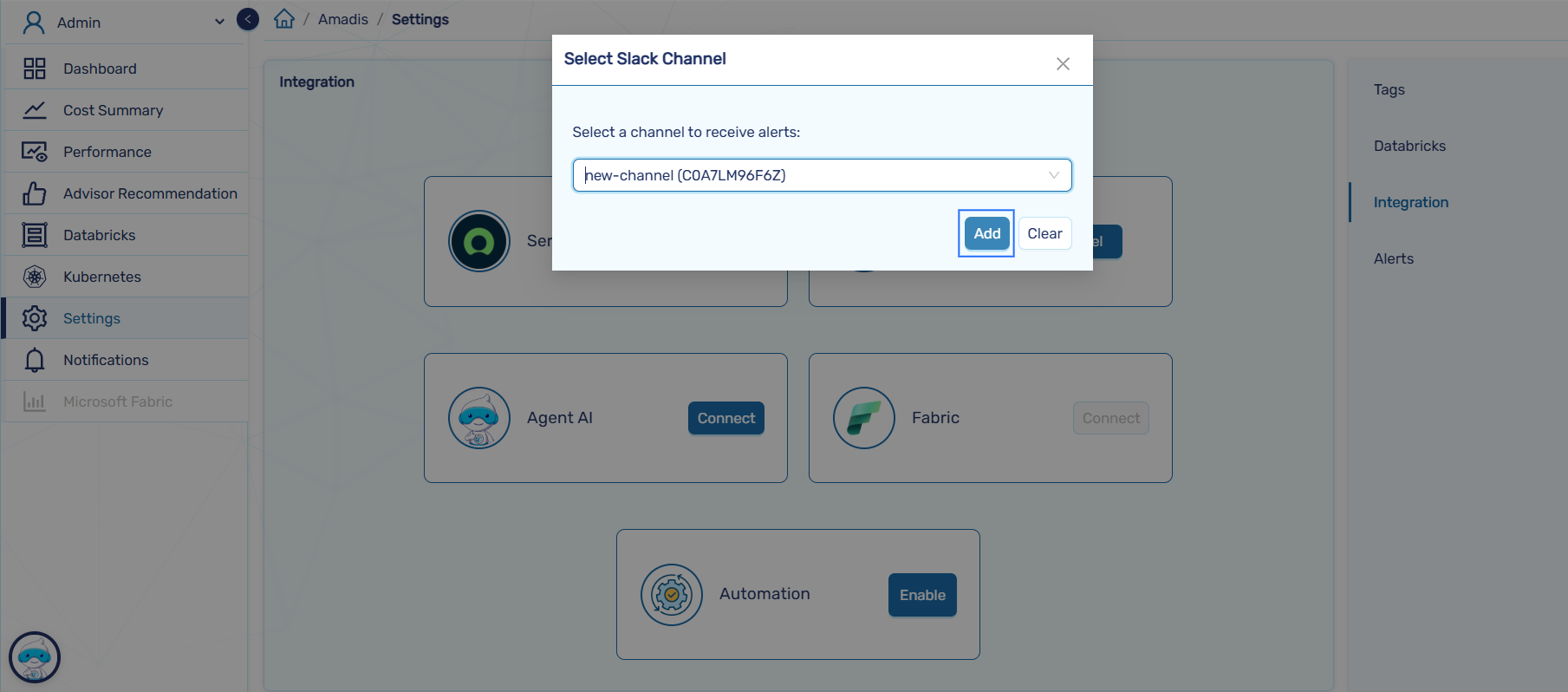
- After selecting the channel click on Add button.
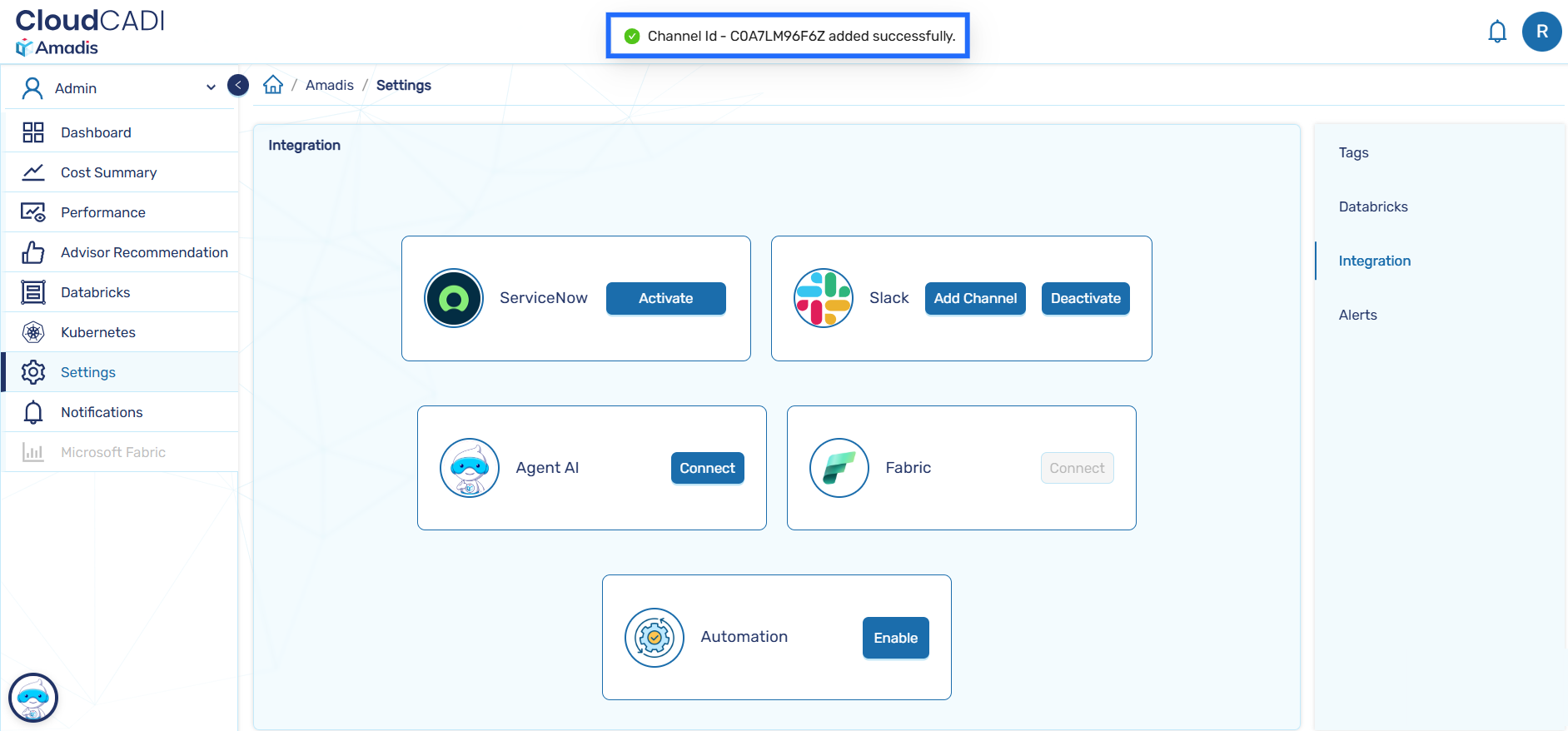
- If the channel is added successfully, a confirmation message is displayed at the top indicating that the channel has been added.
- Ensure the CloudCADI app is invited via Slack or during channel setup in the CloudCADI app; otherwise, the channel won’t be added.
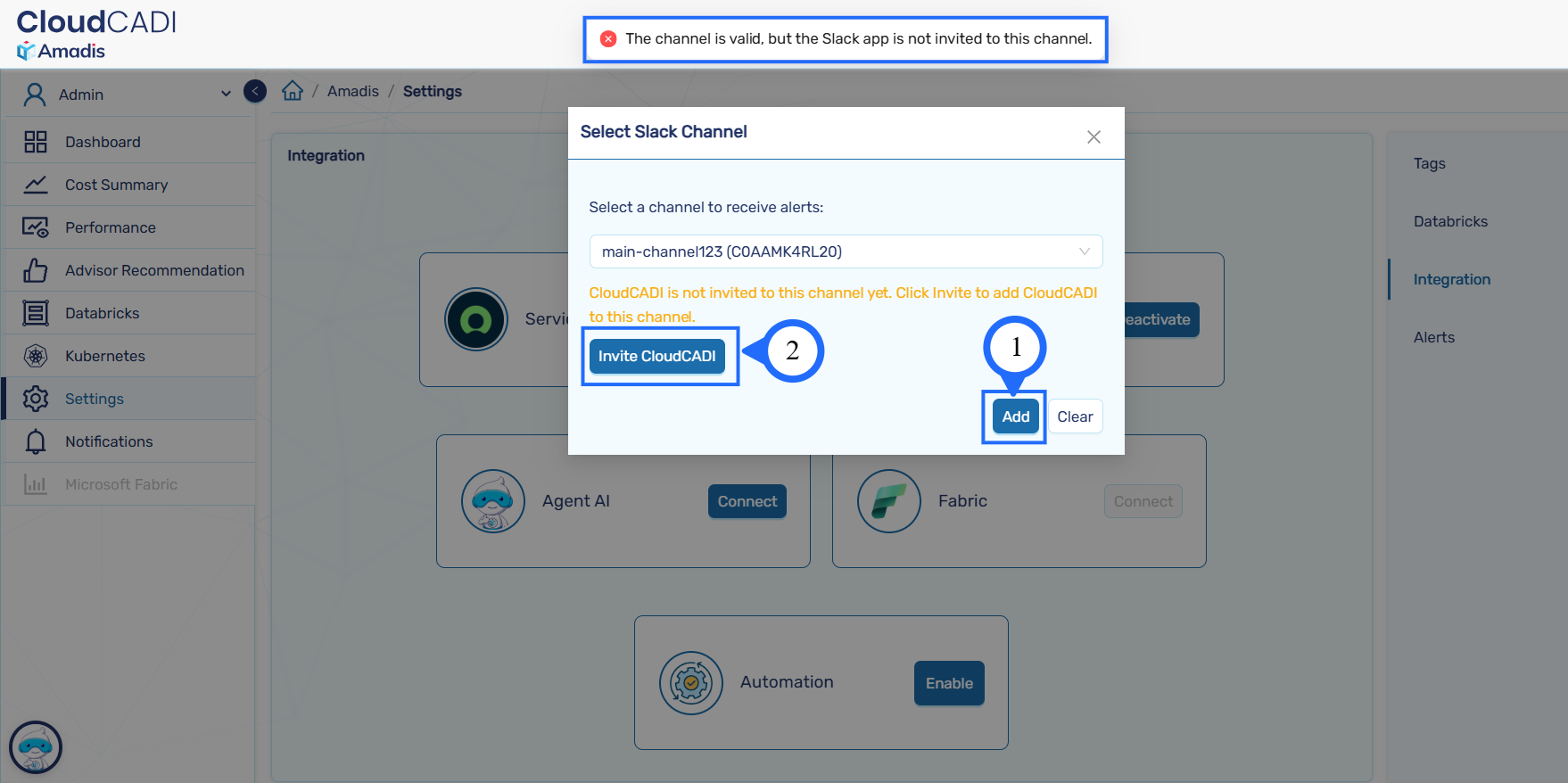
- Once the CloudCADI app is successfully invited, the channel can be included.
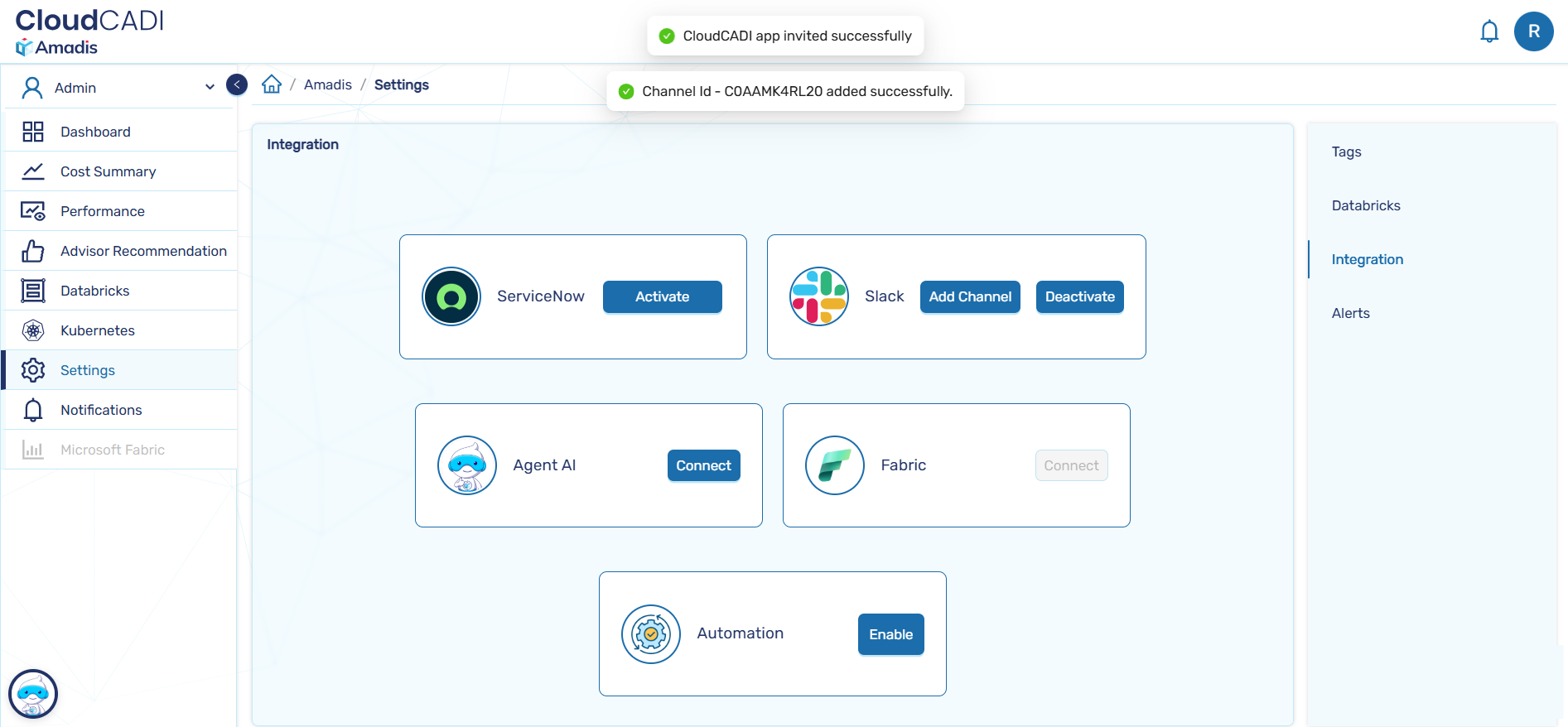
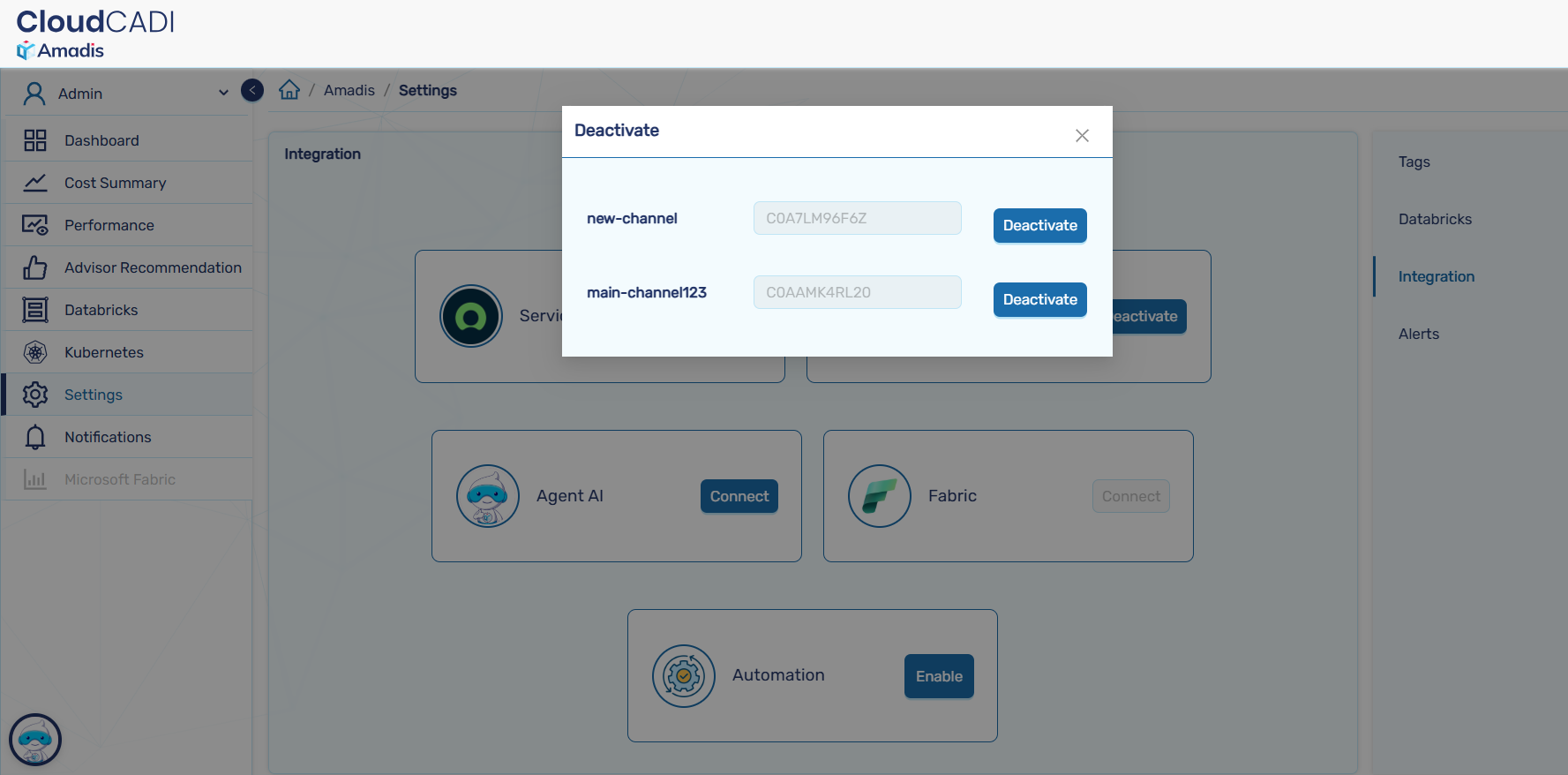
- Click Deactivate to deactivate a channel. The channel will no longer receive CloudCADI alerts.