AWS Cost & Usage Data Export (FOCUS)
Step 1 - Configure Cost and Usage Data Export
Note
The Cost and Usage Data Export must be created in the management account.
- Sign in to the AWS Management Console.
- Open the Billing and Cost Management console.
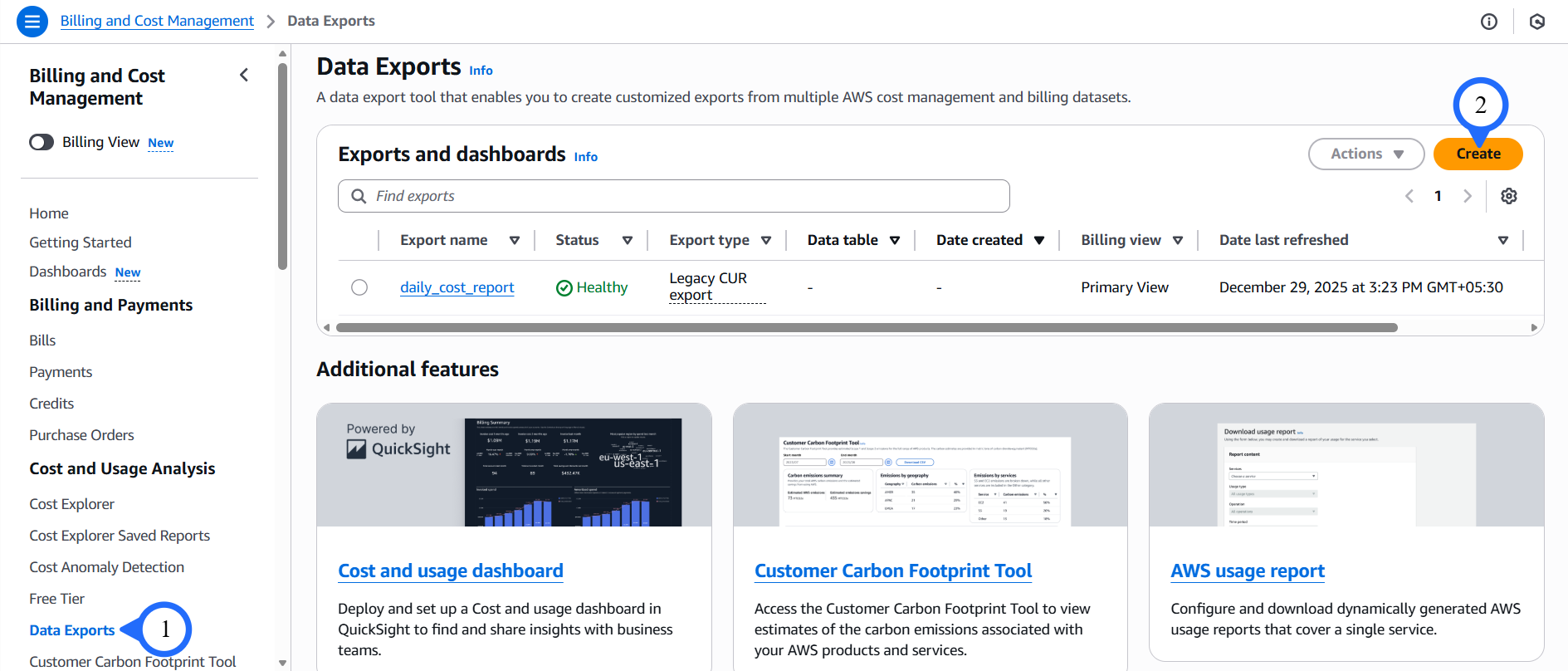
- From the left navigation menu, under Cost and Usage Analysis, click Data Exports.
-
Click Create.
-
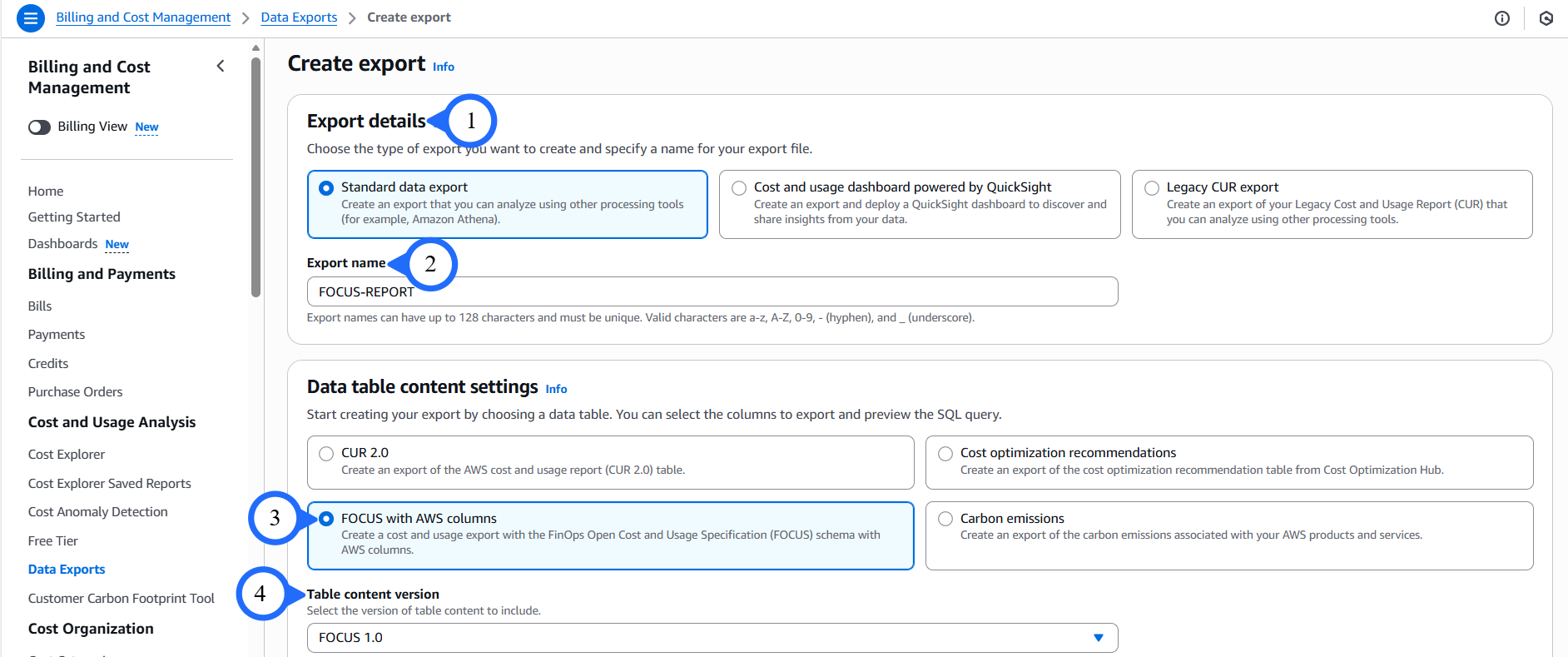
Select Standard Data Export.
- Enter the Export name.
-
Under Data table content settings:
- Enable FOCUS with AWS columns.
- Select Table content version:
1.0.
Data Standardization
Using FOCUS model by FinOps Foundation ensures CloudCADI receives standardized, FOCUS-aligned billing data.
-
Under Data export delivery options, configure:
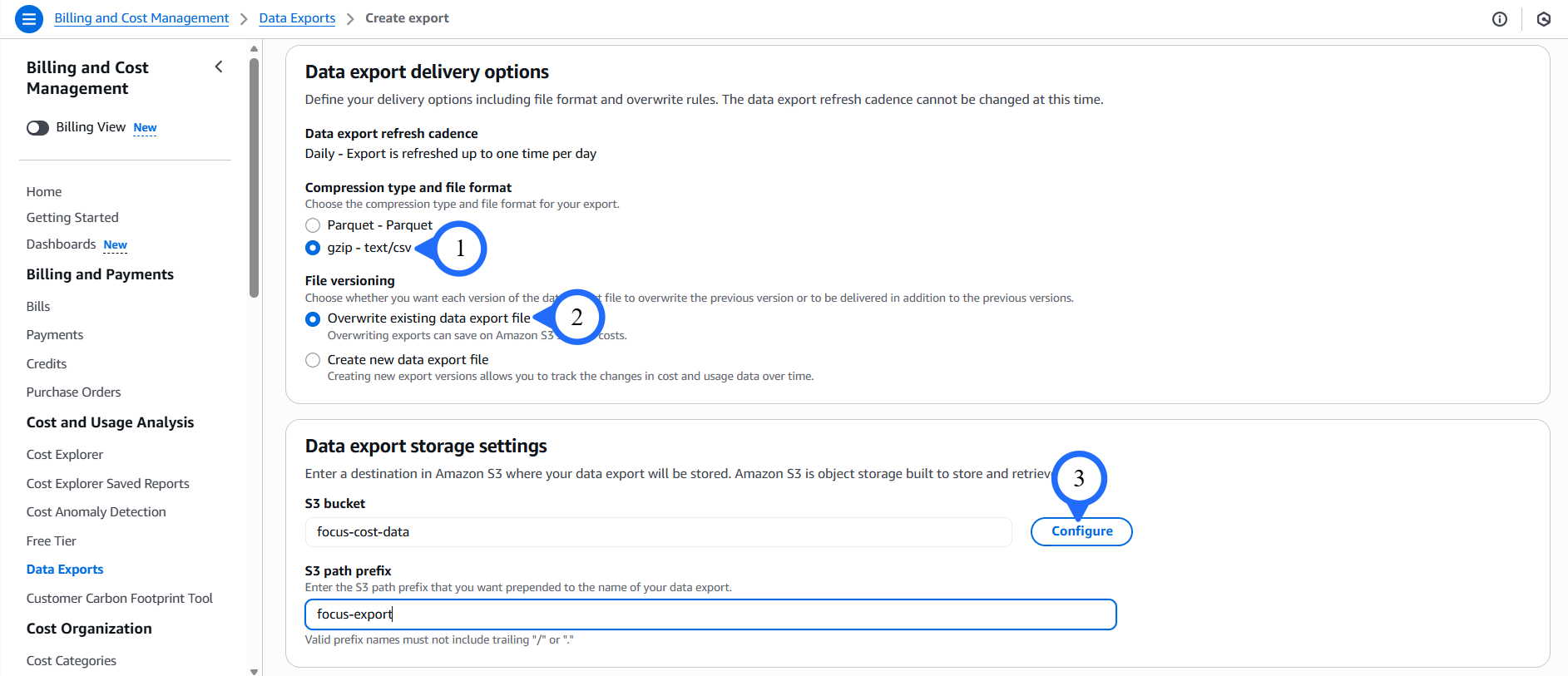
- Compression type and file format:
gzip-text/csv - File versioning:
Overwrite existing data export file
- Compression type and file format:
-
Under Data export storage settings
- Enter S3 bucket.
- Enter S3 path prefix.
- Click Configure.
-
In the pop-up window:
- Select Create a bucket
- Enter S3 bucket name
- Select the appropriate Region
Data Standardization
Ensure the bucket is created in the same region where CloudCADI will be deployed
-
Click Create bucket.

Note
Cost and usage files will start appearing in the S3 bucket within 24 hours of successful configuration.
Step 2 - Cost Report in S3 Bucket
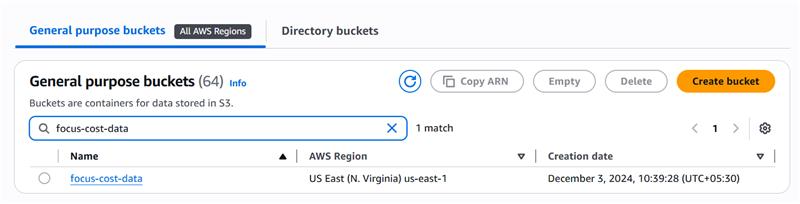
- Go to S3 console -> Buckets.
-
New bucket will be created.
-
Click the Bucket name
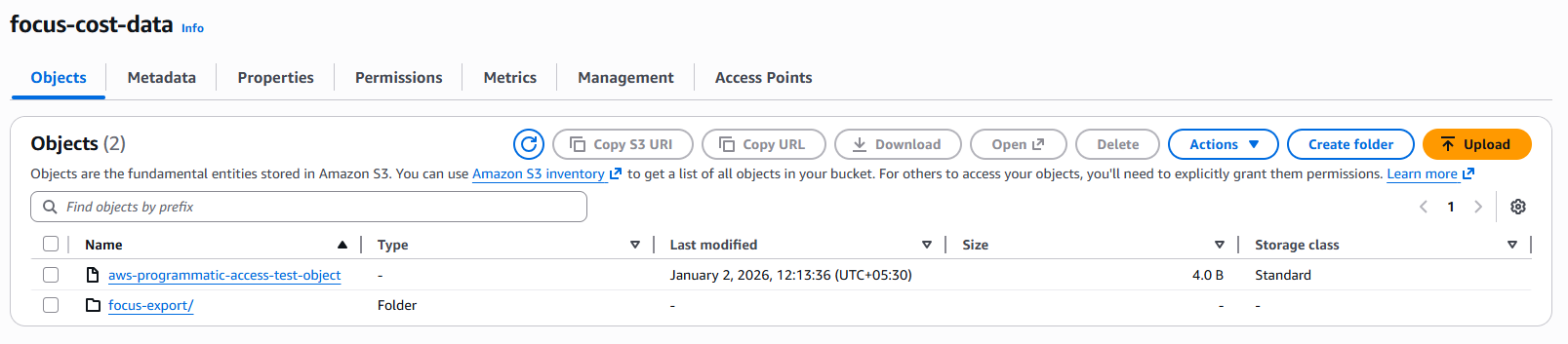
- Click the Export name folder

- Cost reports are maintained in folder on monthly basis.
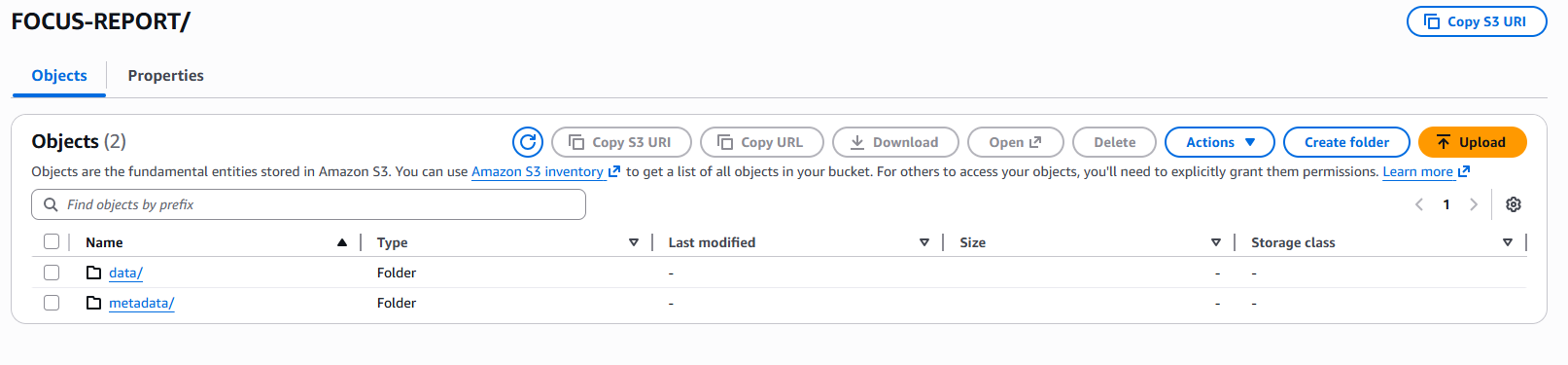
- Click the latest month folder
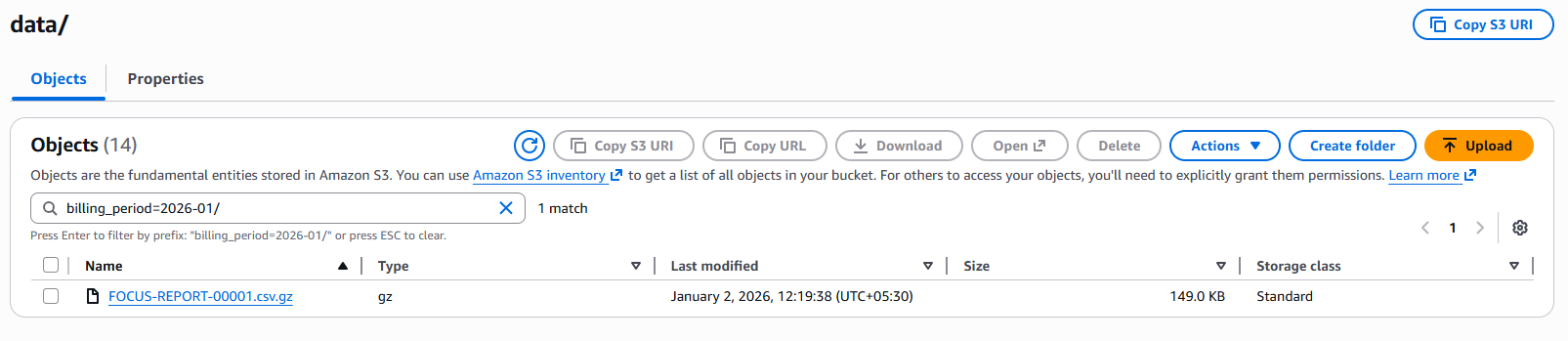
Values Required for CloudCADI Onboarding
You will need the following values while configuring CloudCADI:
- S3 Bucket Name → The bucket you created
- S3 Path Prefix → The prefix entered during export configuration
- Export Name → The export name you provided
These combine to form the cost export path in the following format:
<bucket-name>/<path-prefix>/<export-name>
Example:
focus-cost-data/focus-export/FOCUS-REPORT