Service Principal Configuration and Access Control
Step 1 - Service Principal Configuration
This section provides details about the options that need to be configured to enable Single Sign-On (SSO) for the App Service. It also covers the permissions required for reading data from Log Analytics.
-
Log in to Azure Portal and Open "Microsoft Entra ID".
-
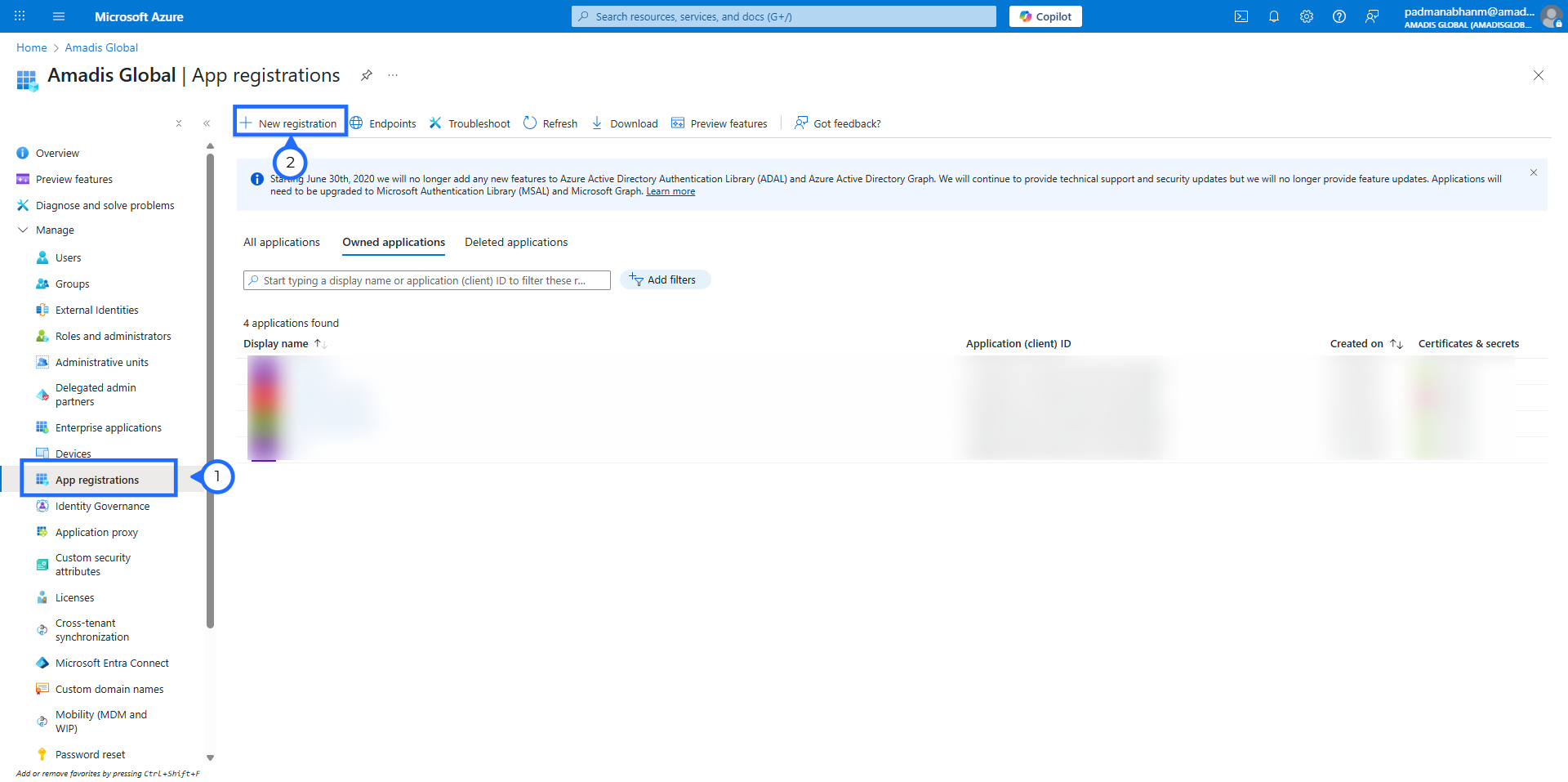
Extend Manage section and Click on “App registrations” and select "New registration".
-
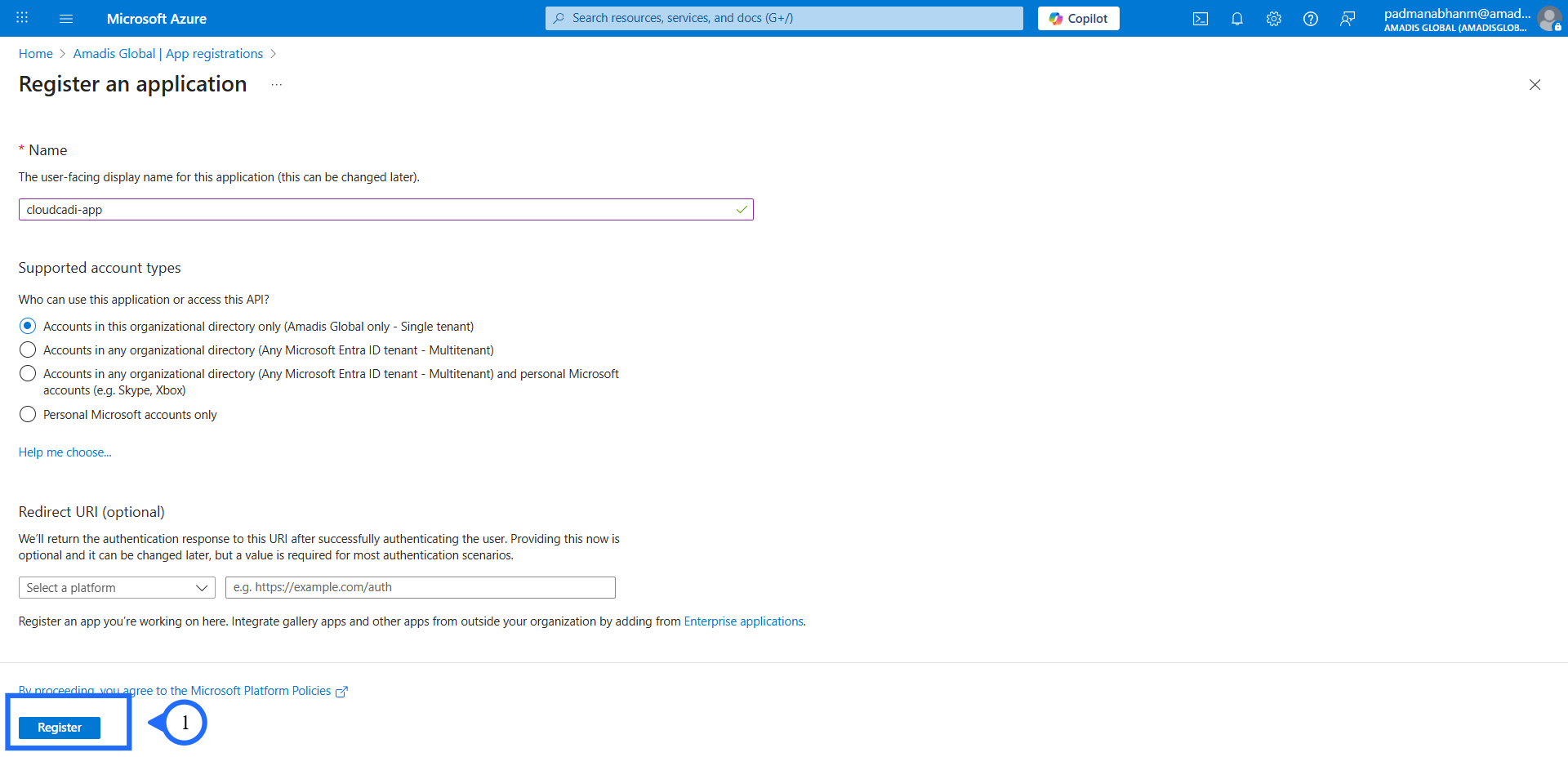
Enter the app name and register it.
-
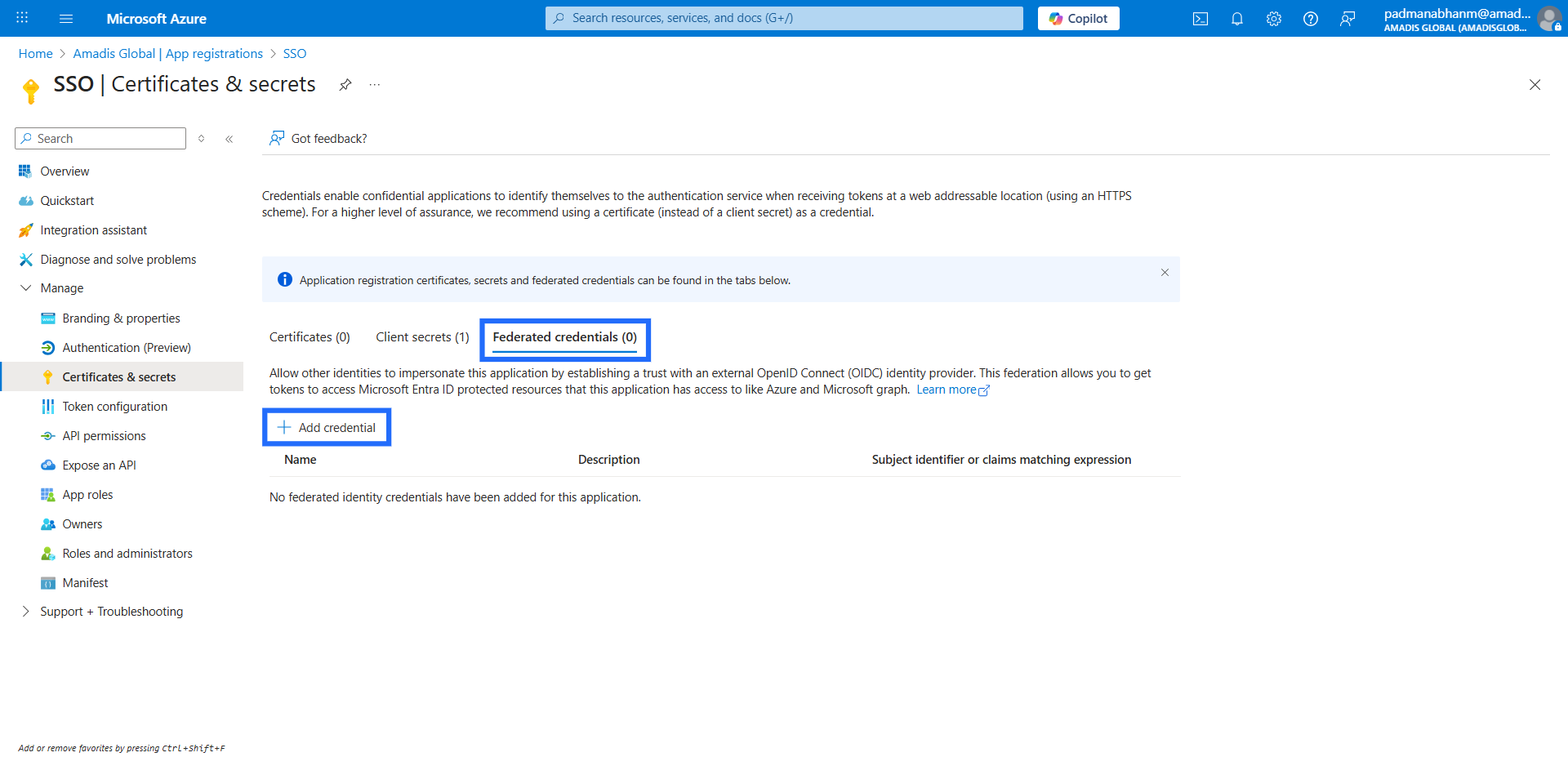
Go to the registered app, click on "Certificates & secrets", select "Federated credentials", and then click "Add credential".
-
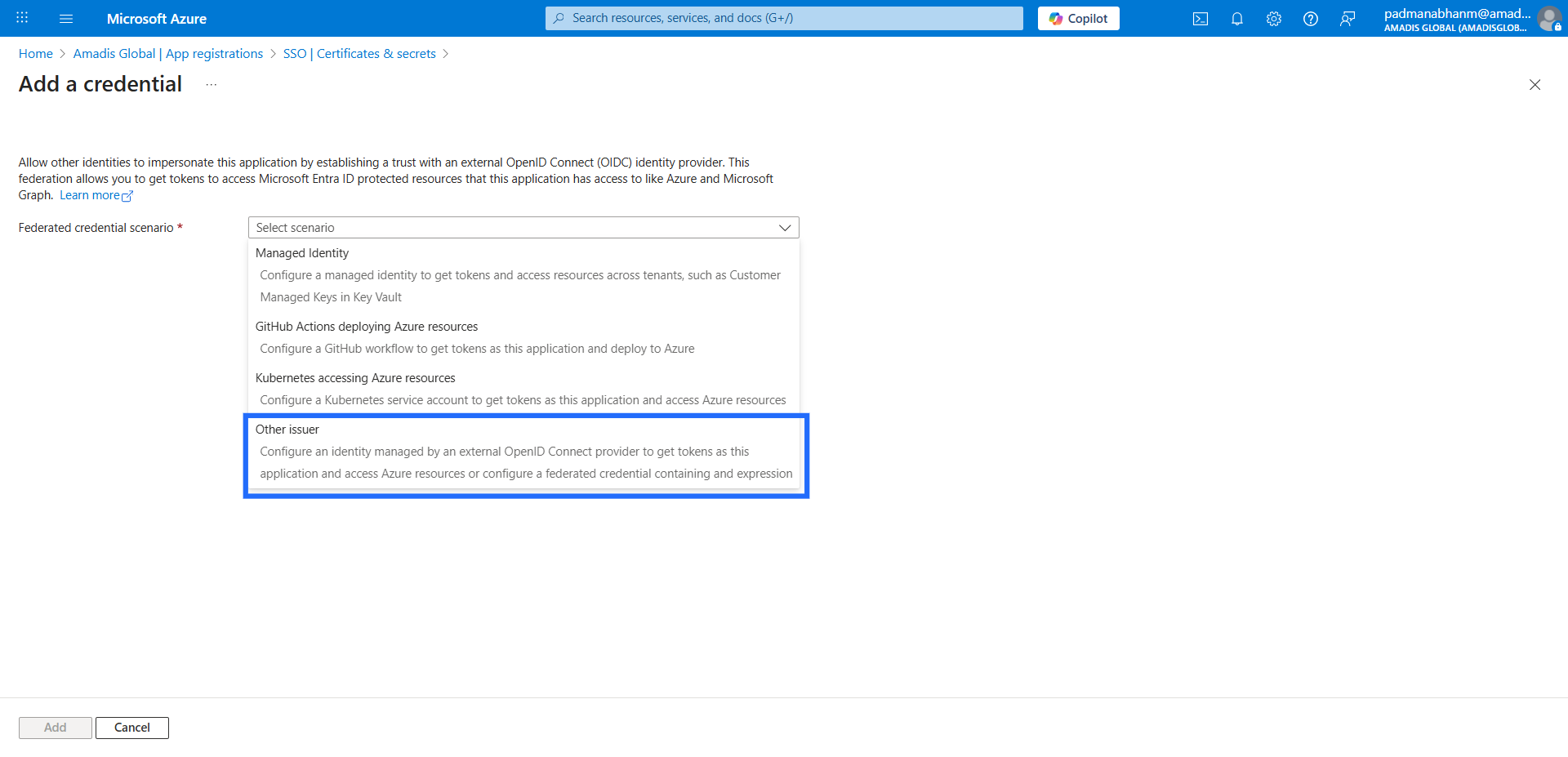
Select the "Other issuer" in the drop down.
-
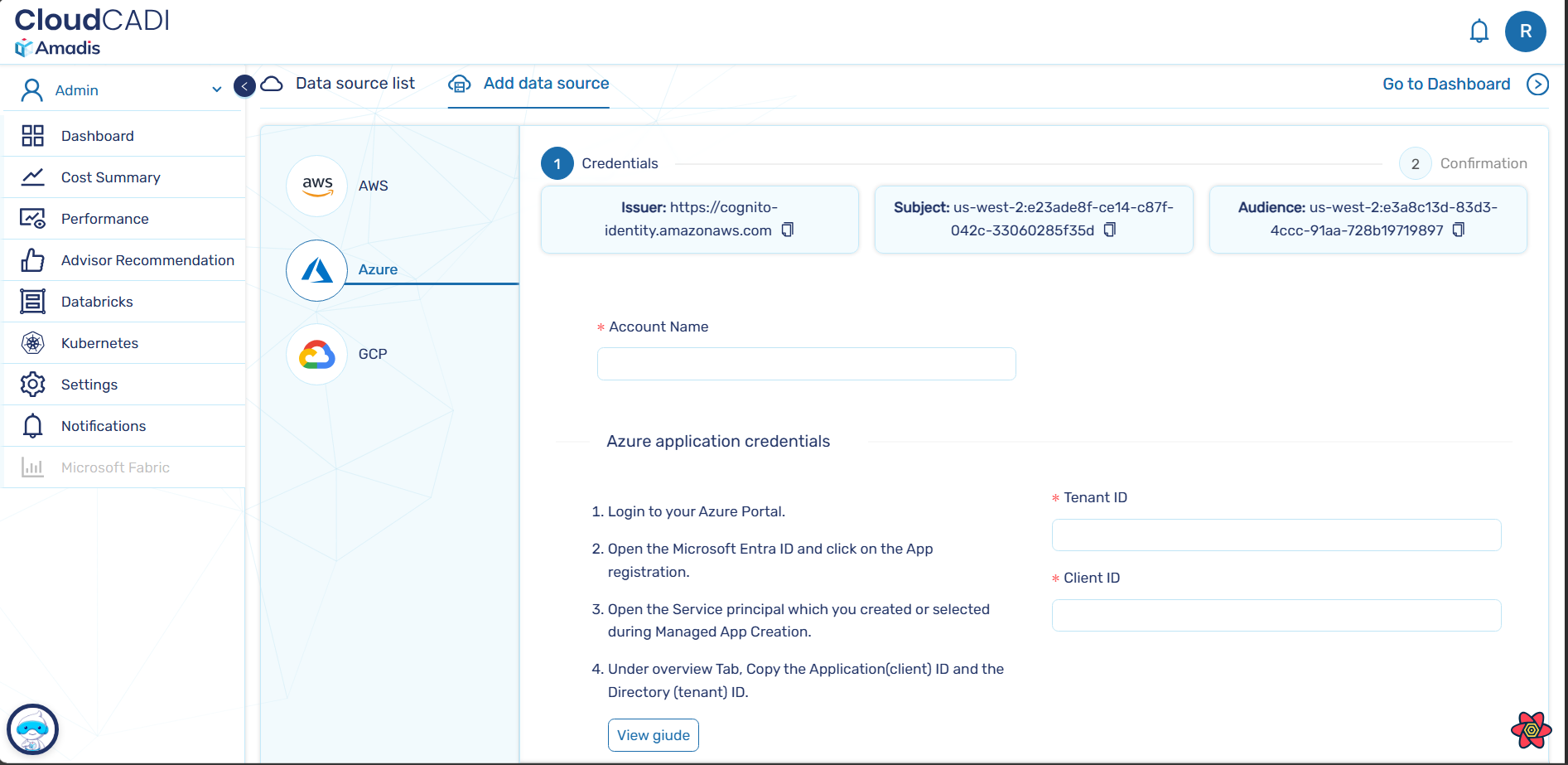
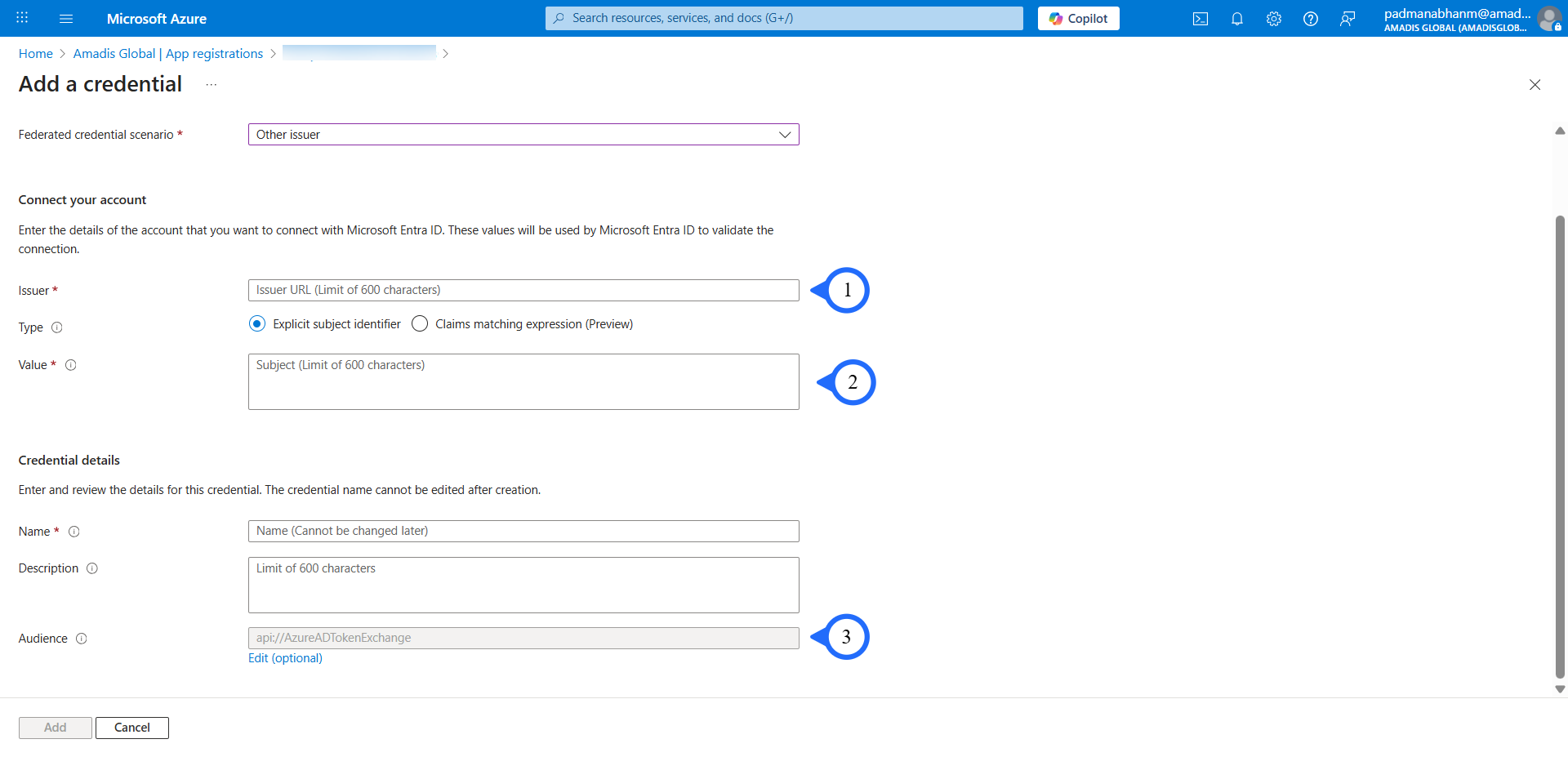
Enter the required credentials. Get the required credentials from the cloudCADI azure onboarding page.
How to get the required credentials ?
From the onboarding UI, take the Issuer, Subject, and Audience values and fill them in on this credentials page and then create it.
-
Issuer → Issuer
-
Subject → Value
-
Audience → Audience (after clicking the Edit button below)
Step 2 - Setting up Subscription level Reader Role
-
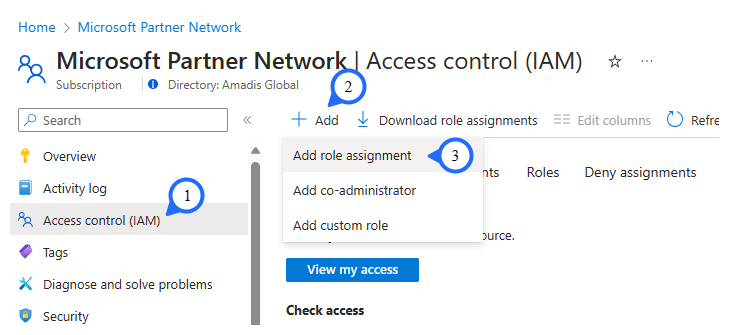
Open "Subscription" from the 'azure portal' Select the "Access Control (IAM)" from the left side panel.
-
Click on "+Add" at the top.
-
Select "Add Role Assignment".
Role Assignment
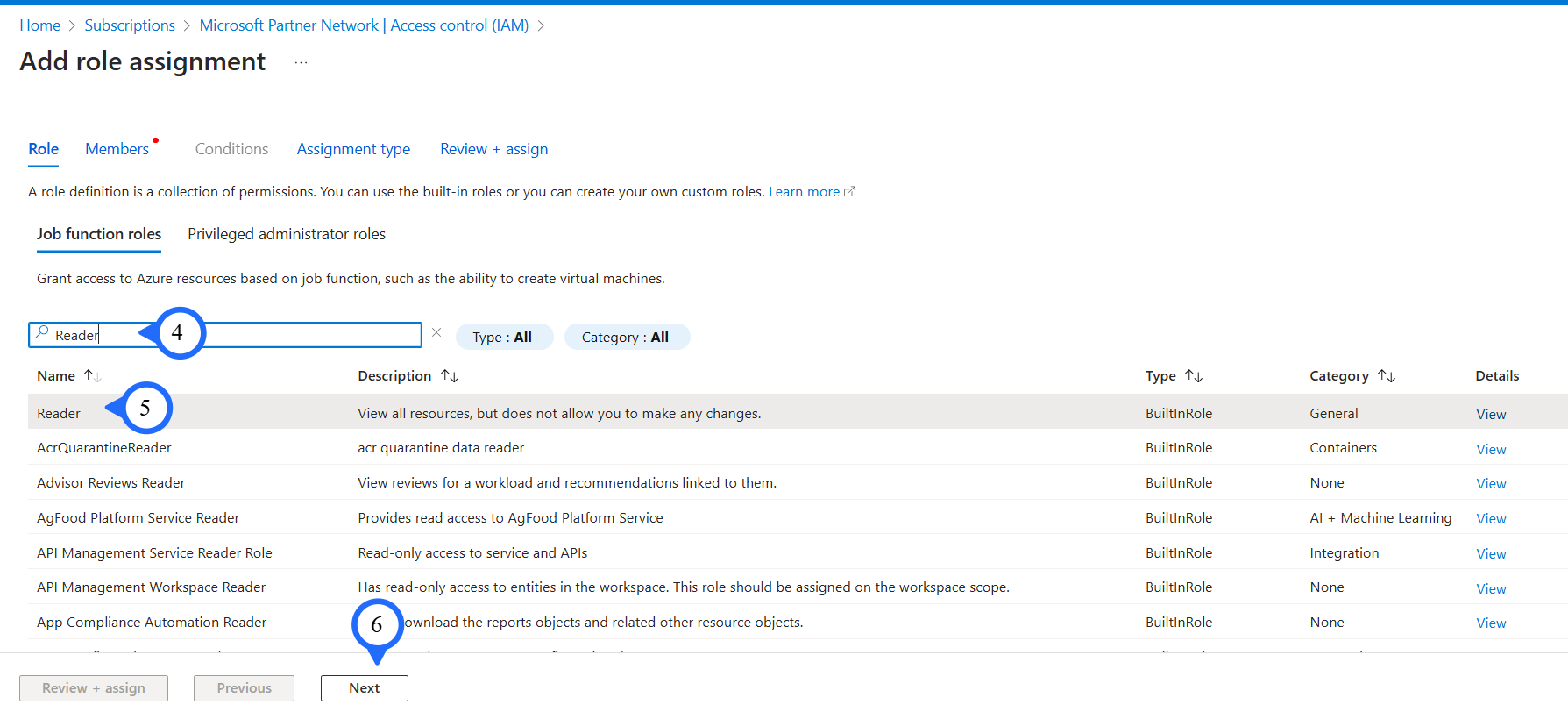
- Search and select "Reader".
- Add "Log Analytics Contributor" and "Monitoring Contributor" role.
- Also add "Storage Blob Data Reader" role for the subscription in which the cost is exported.
-
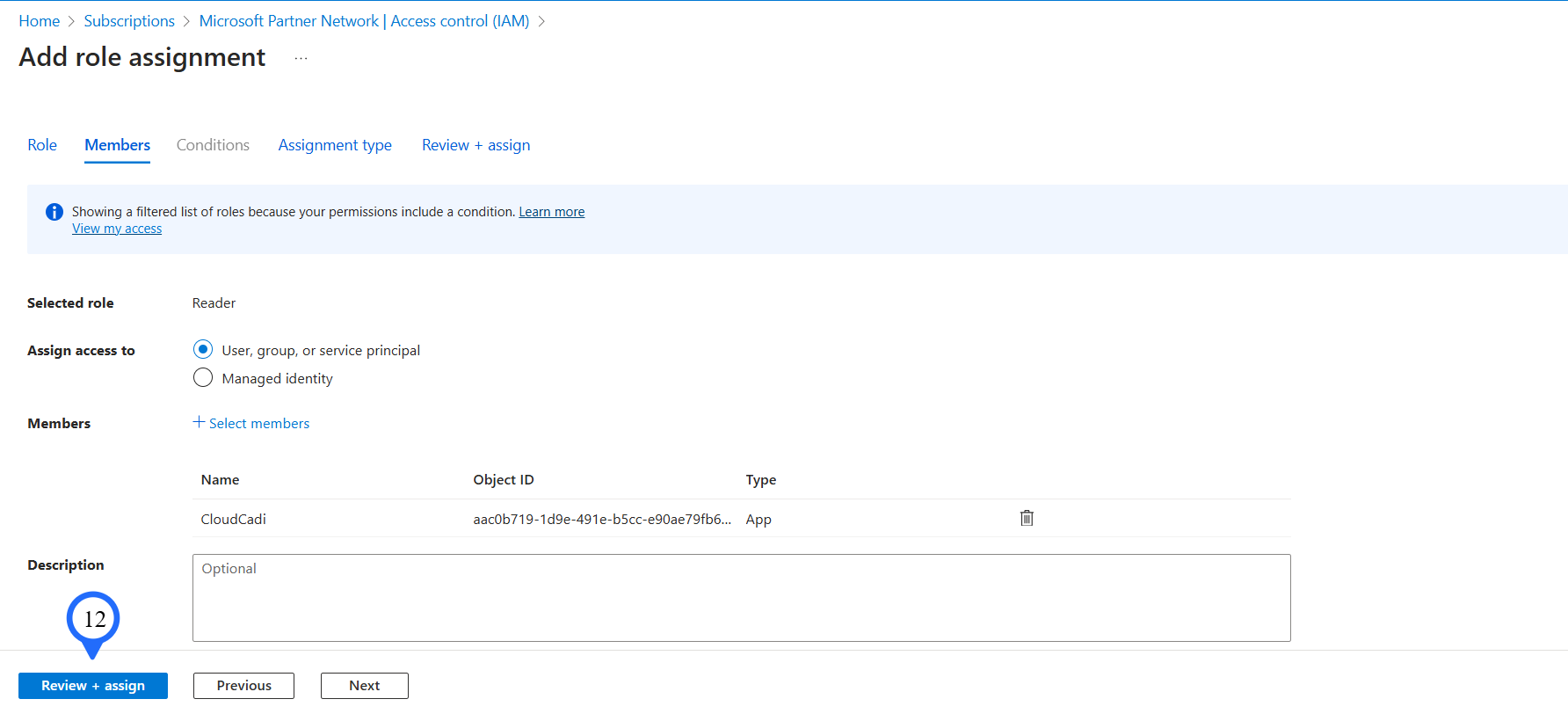
Select Assign access as "User, group, or service principal".
-
Click "+ Select Members".
-
Choose the Service principal that is created during the managed app creation process and click on "Next"

-
Click on the "Review + assign" button.