Setting Up Performance Data Collection
Setting Up Virtual Machine Monitoring
Step 1 - Configuration
-
Search for “Monitor” in Azure Portal.

-
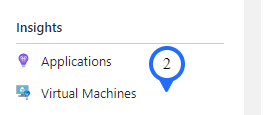
Click on the “Virtual machine” under Insights tab.
-
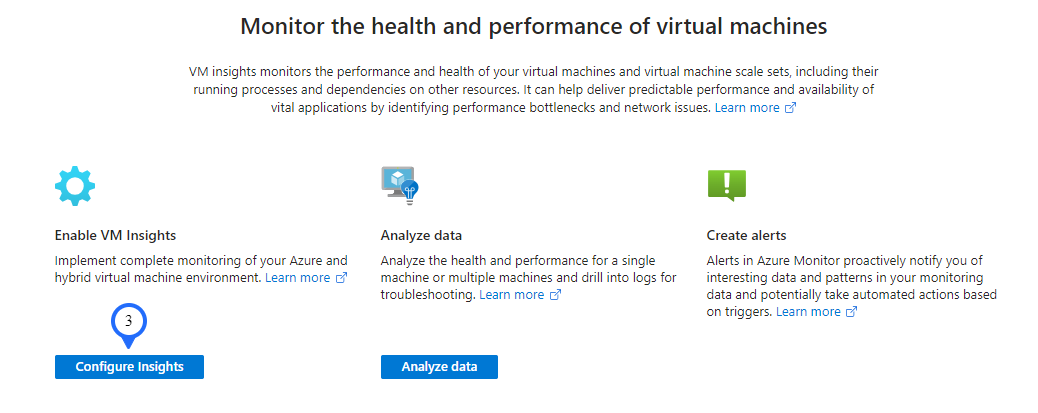
Click on “Configure Insights”.
-
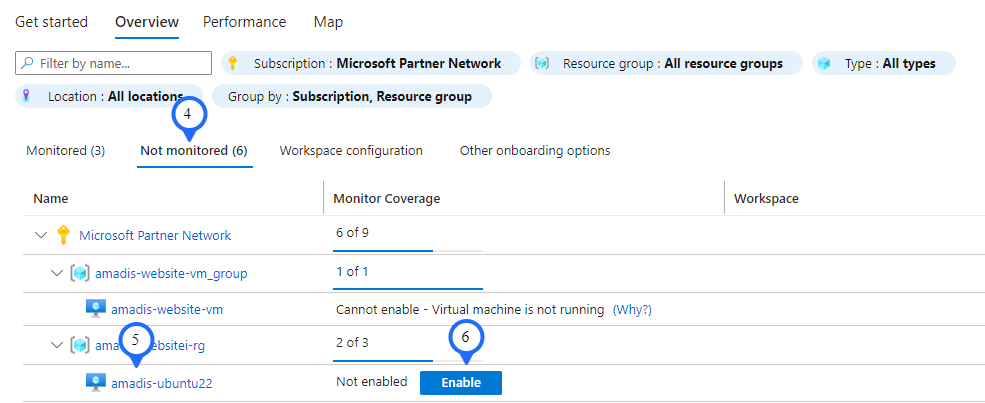
Click “Not monitored” under 'Overview' tab in the right side.
-
Choose the virtual machine which need to be enabled.
-
Click on "Enable".
-
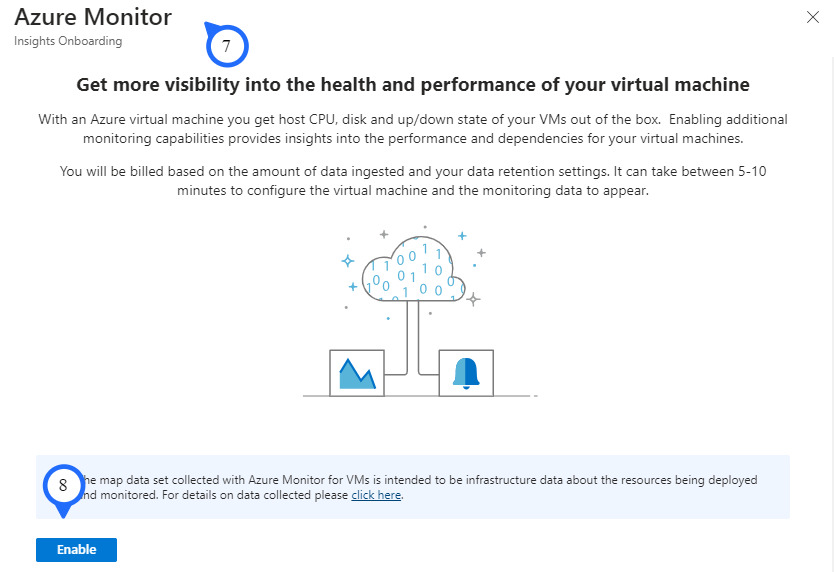
It is redirected to the 'Azure Monitor Screen'.
-
Click on "Enable".
-
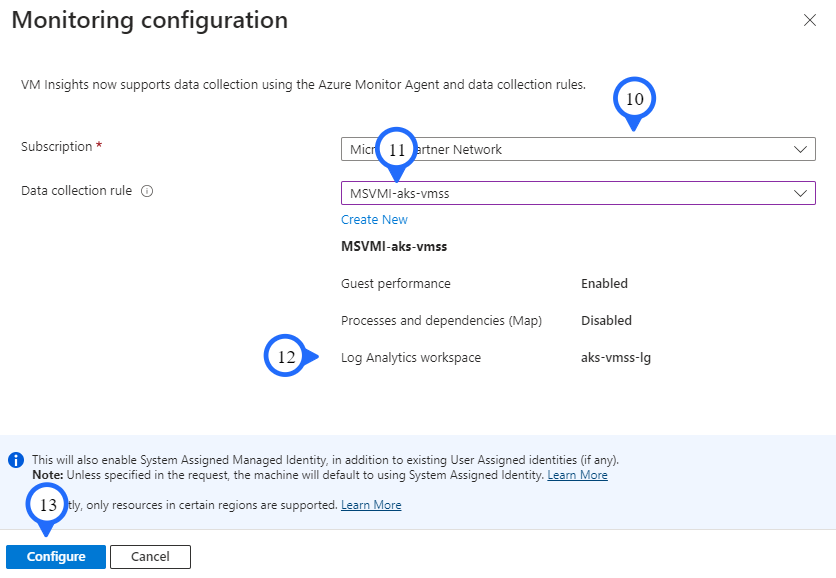
It will redirect to the 'Monitoring Configuration' screen.
-
Choose the required subscription.
-
Choose the DCR which was created during the managed app creation from dropdown.
-
The 'Log Analytics workspace' from the selected DCR location will get auto selected.
-
Click on "Configure".
-
Now the selected Virtual Machine is configured with the selected DCR. Repeat the steps from 5 to 13, for enabling all VM under "not Monitoring" tab.
Step 2 - Add Resources for monitoring (OPTIONAL)
-
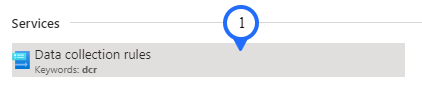
Search for "Data collection rules" in azure portal.
-
You can see the created DCR with enabled VM insights and performance counters.

-
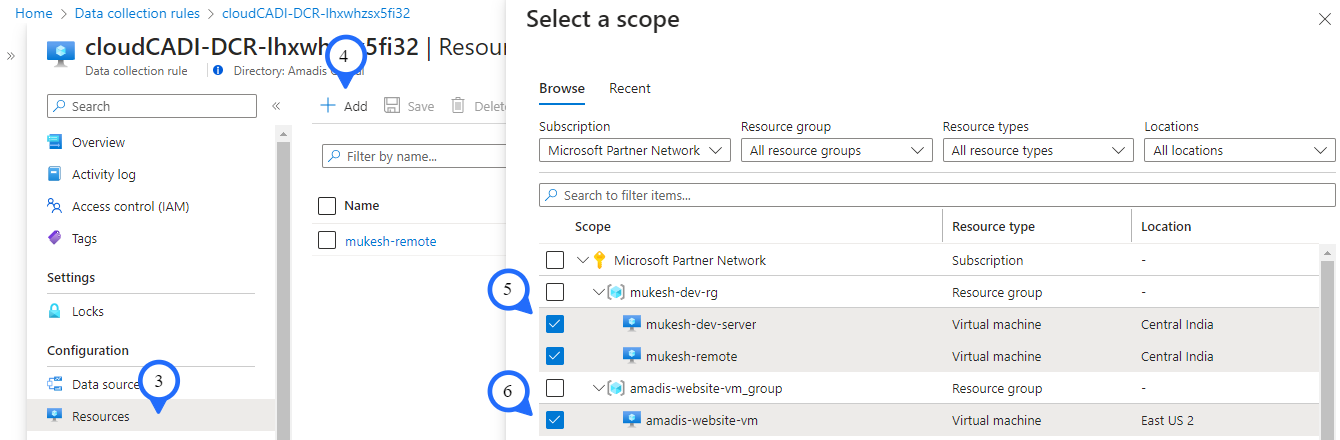
To add VM in DCR, select the DCR and select the resources.
-
Click “+ Add”, in the “Select a scope” section.
-
Choose the resources need to add. Can add any number of resource we want.
-
Click “Apply”.
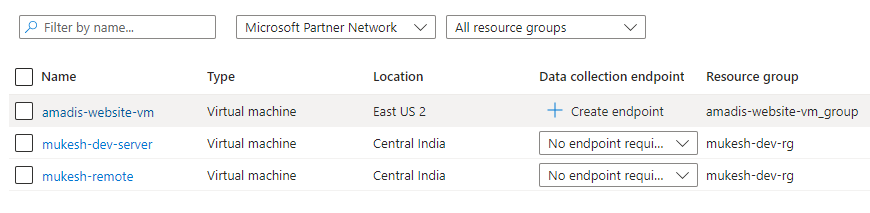
7.. After adding the resource, it will be shown in the resource list . Logs of these resources will be sent to the selected log analytics workspace.
Step 3 - Add more Log Analytics Workspace to DCR (OPTIONAL)
-
Search for "Data Collection Rules (DCR)" in azure portal.
-
Choose the 'DCR' which needs to add new log analytics workspace.
-
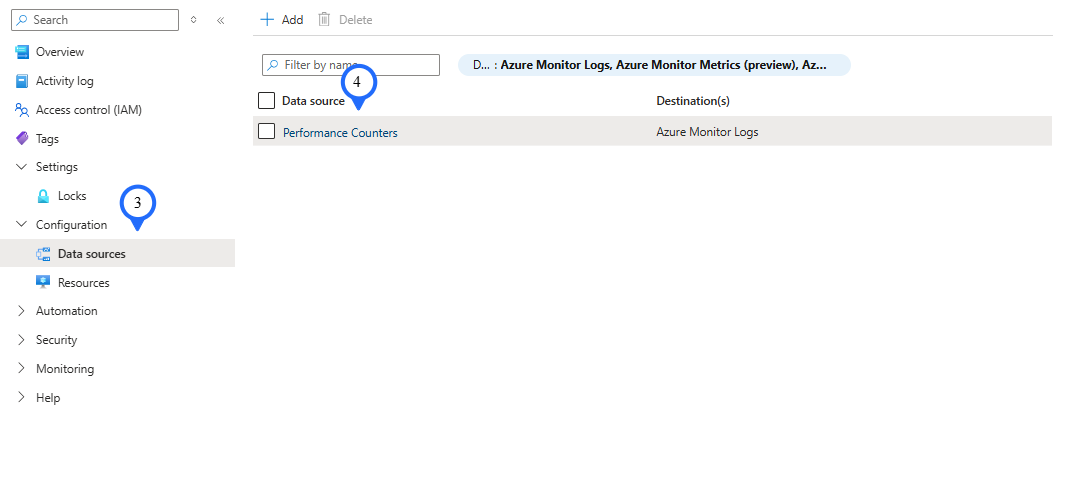
Click on the "Data source" under Configuration tab.
-
Click on "Performance Counters".
-
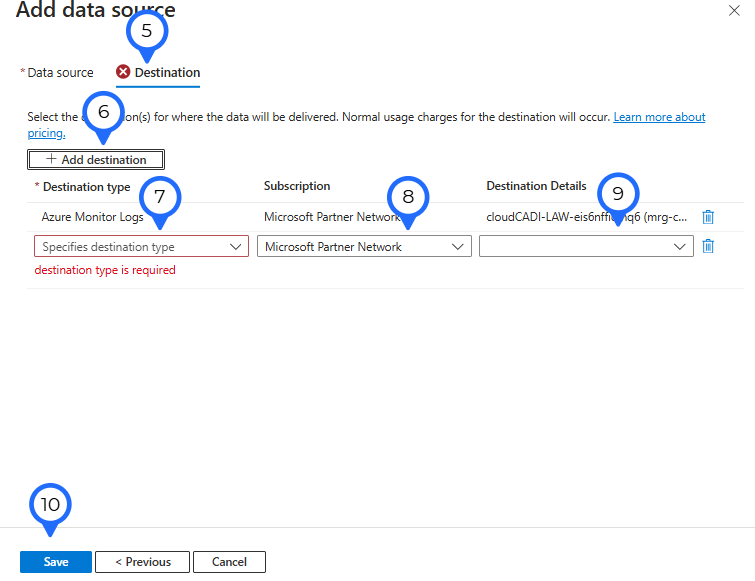
Click on the "Destination".
-
Click on "+Add destination".
-
Choose the 'Destination type' as "Azure Monitor Logs".
-
Choose the required 'Subscription'.
-
Choose the required 'Log Analytics Workspace'.
-
Click on "Save"
Setting Up App Service Monitoring
-
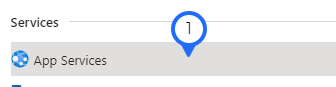
Search for "App Service" in Azure Portal and select the required app service.
-
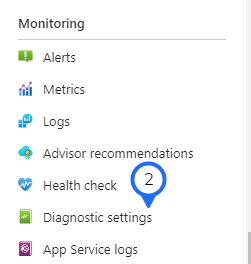
Under monitoring, choose the "Diagnostic Setting".
-
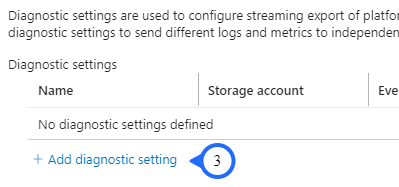
Click “Add diagnostic setting”.
-
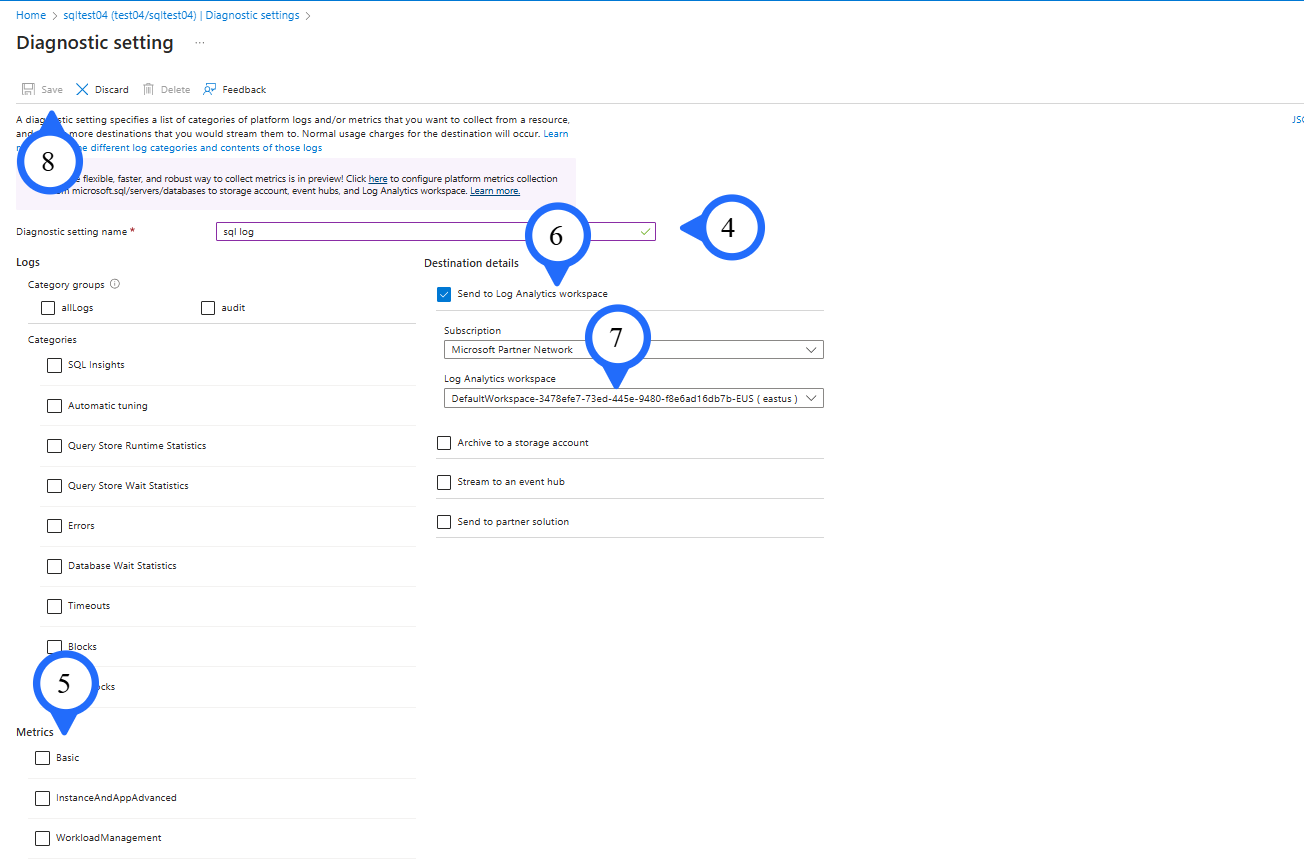
Provide the diagnostic setting name.
-
Enable all the metrics needed.
-
Choose the destination to send to Log analytics workspace
-
Select the previously configured Log analytics workspace from the list of available workspaces.
-
Click "Save" to connect 'SQL Database' to the log analytics workspace.
Setting Up SQL Database Monitoring
-
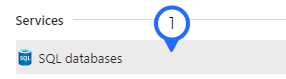
Search for "SQL Database" in 'Azure Portal' and select the required 'App service'.
-
Under monitoring, choose the "Diagnostic Setting".
-
Click “Add diagnostic setting”.
-
Provide the diagnostic setting name.
-
Enable all the metrics needed.
-
Choose the destination to send to Log analytics workspace
-
Select the previously configured 'Log analytics workspace' from the list of available workspaces.
-
Click "Save" to connect 'SQL Database' to the log analytics workspace.