Setting up Log Analytics Workspace and Data Collection Rule
Note
- Creating "Log Analytics Workspace" and "Data Collection Rule" should be in the same location.
Creating Log Analytics Workspace
- Login to azure portal.
- Search for Log analytics workspaces.
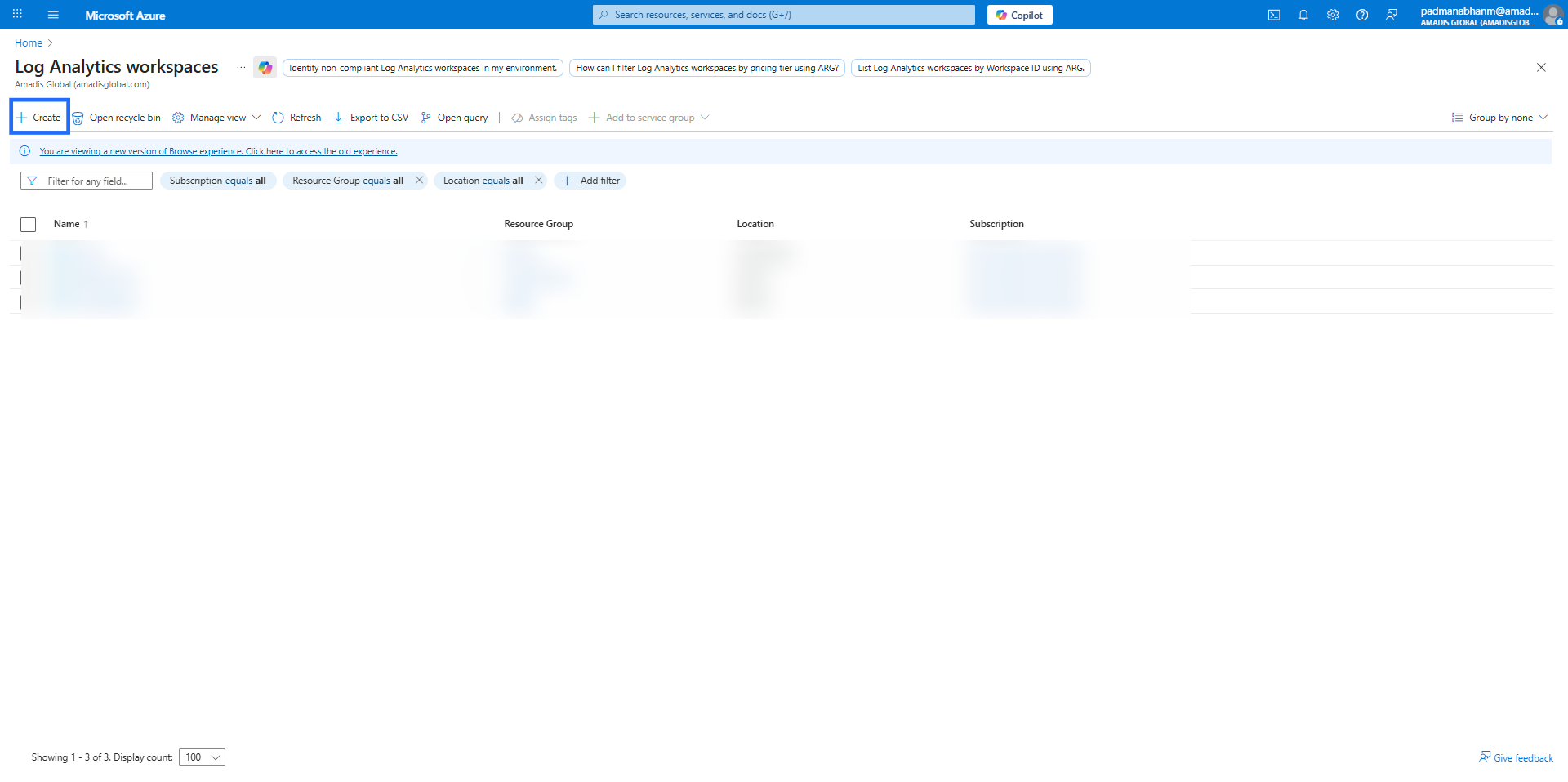
- Select "create" for setting up new log analytics workspace.
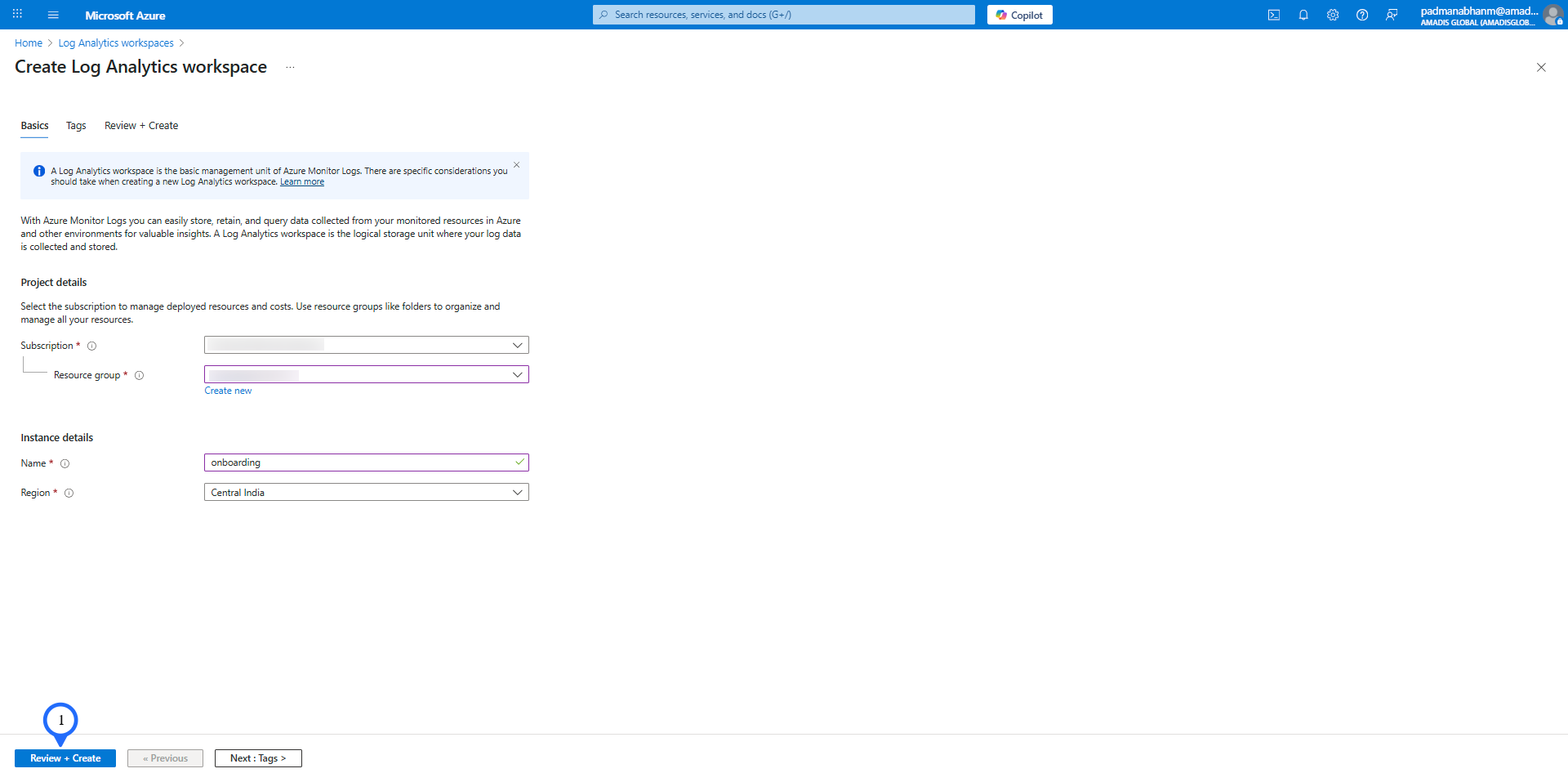
- Enter the required details like resource group, name and region and select the button "Review + Create".
Setting up of Data Collection Rule
- Login to azure portal.
- Search for Data Collection Rules.
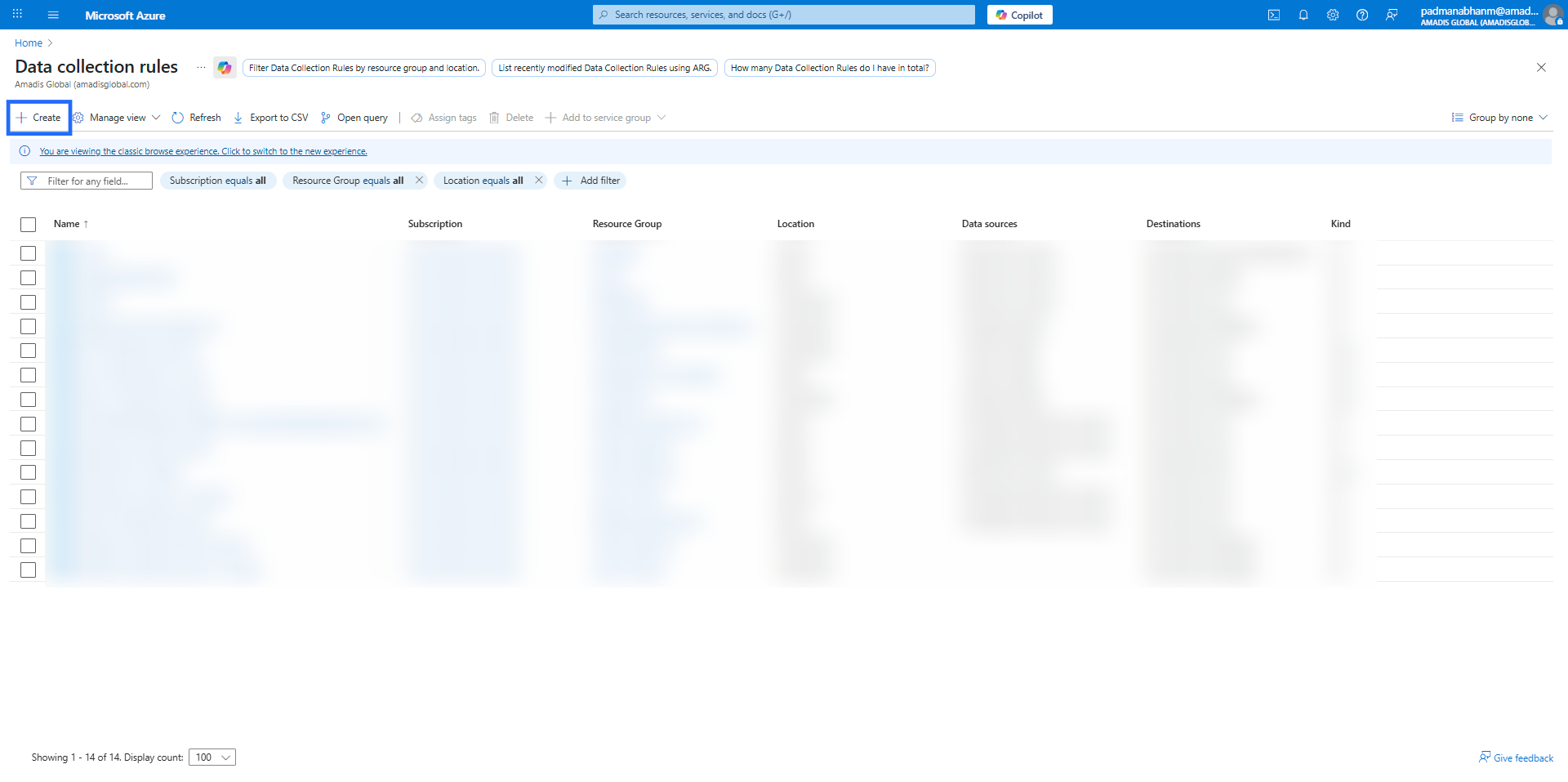
- Click "Create" to set up new data collection rule.
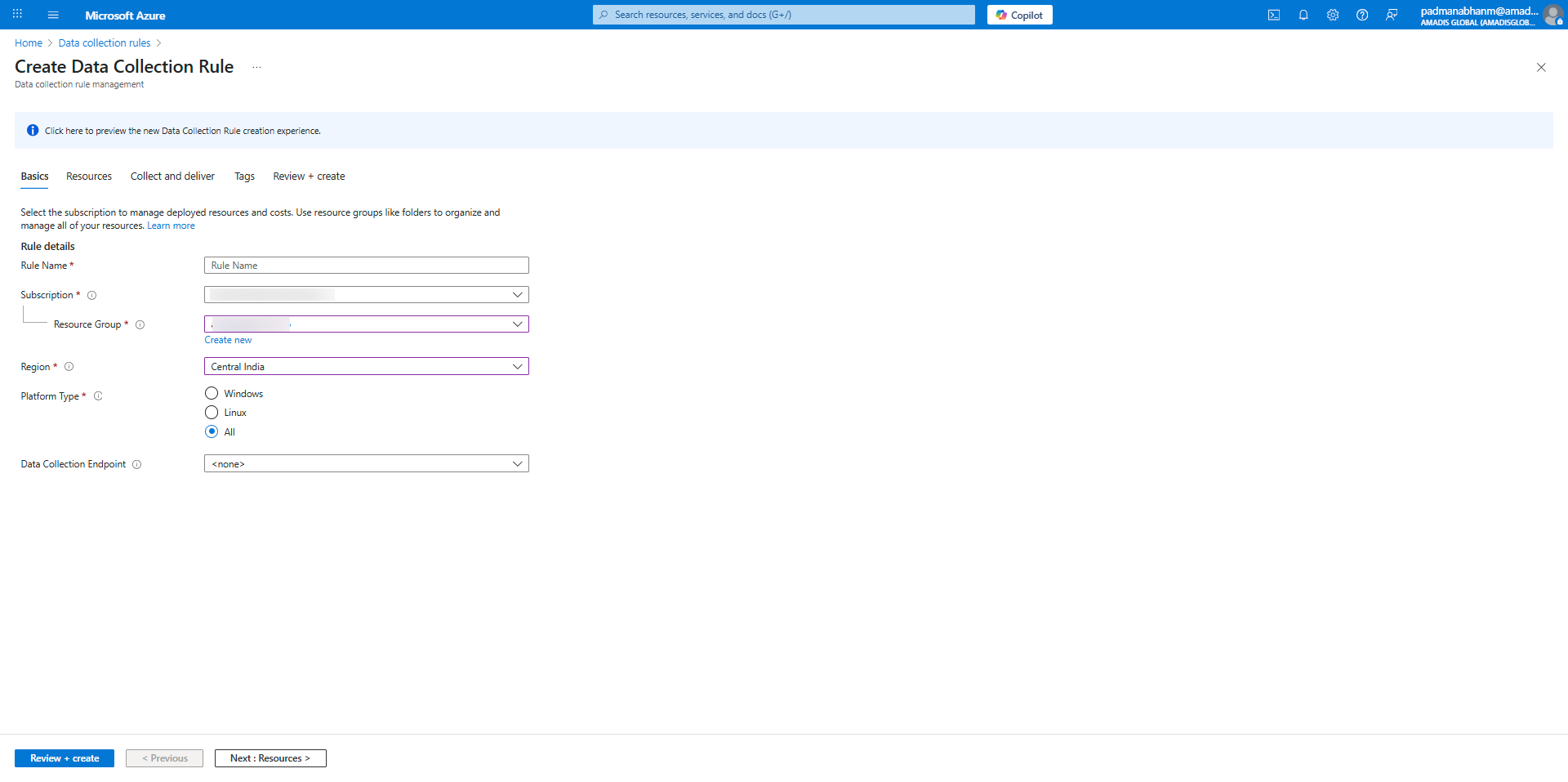
- Enter the required details, the region should be same the log analytics workspace.
- Then select the "collect and deliver" tab and select "Add datasource".
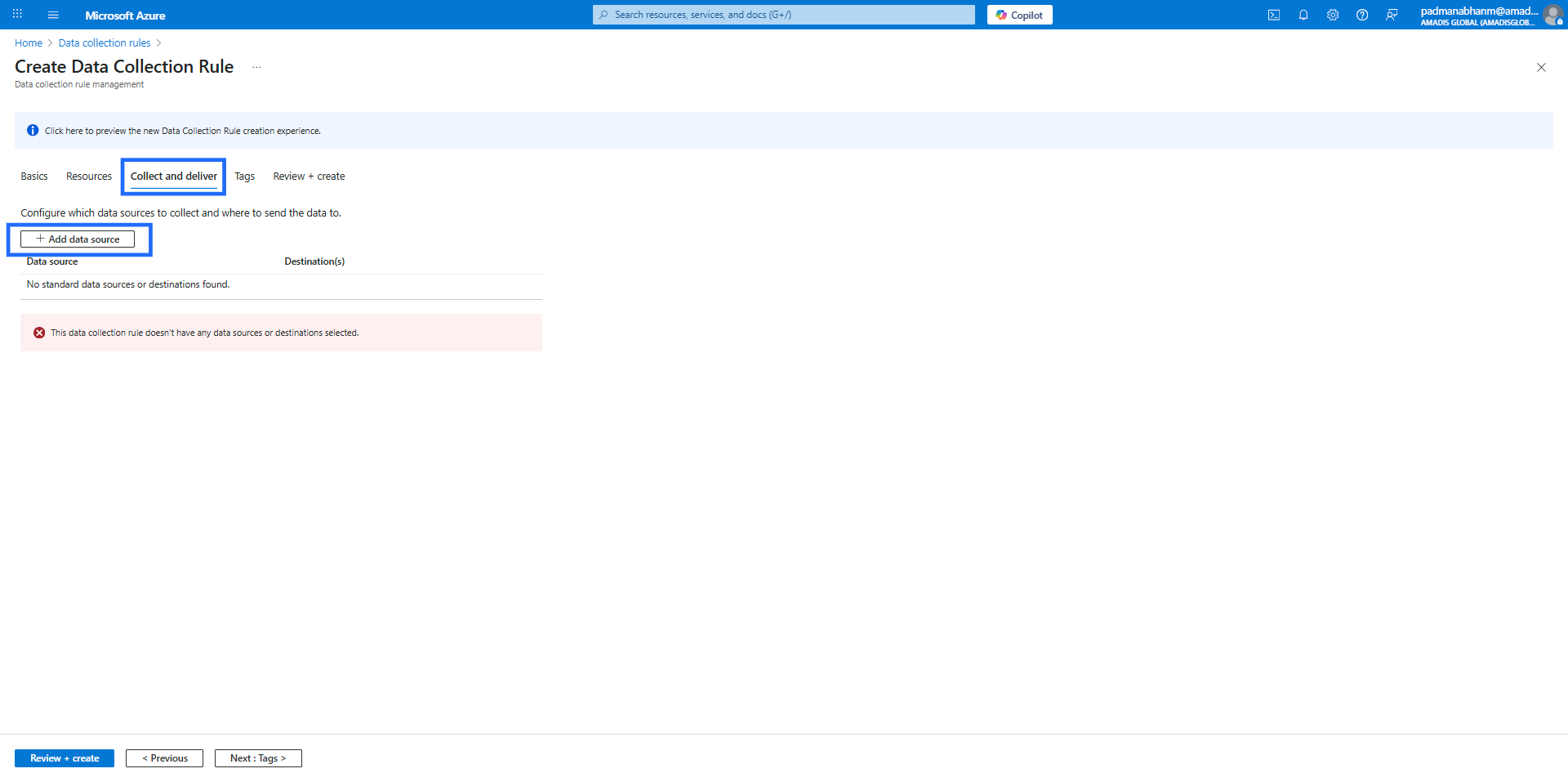
- Select "Performance Counters" in the Data source type.
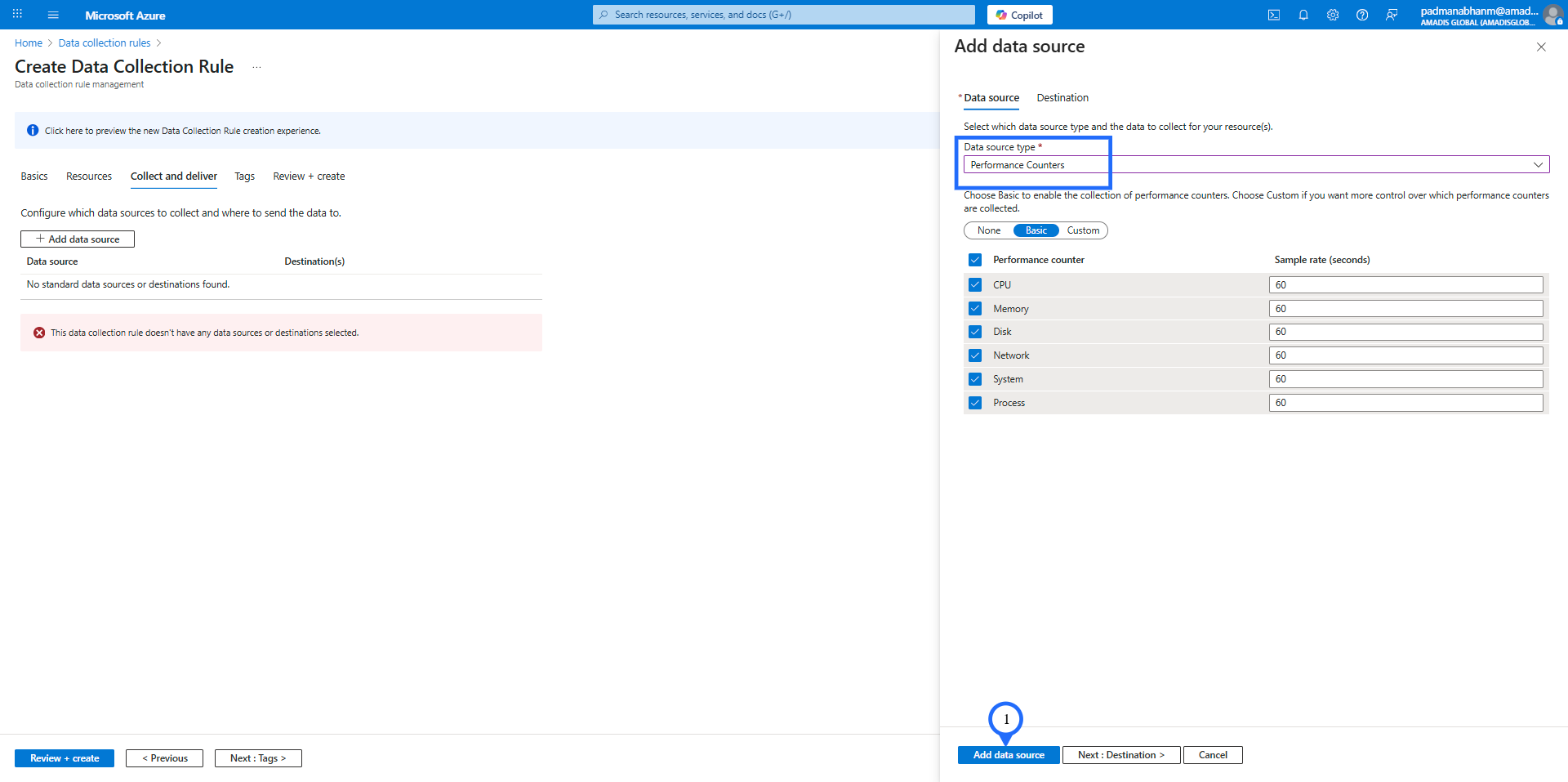
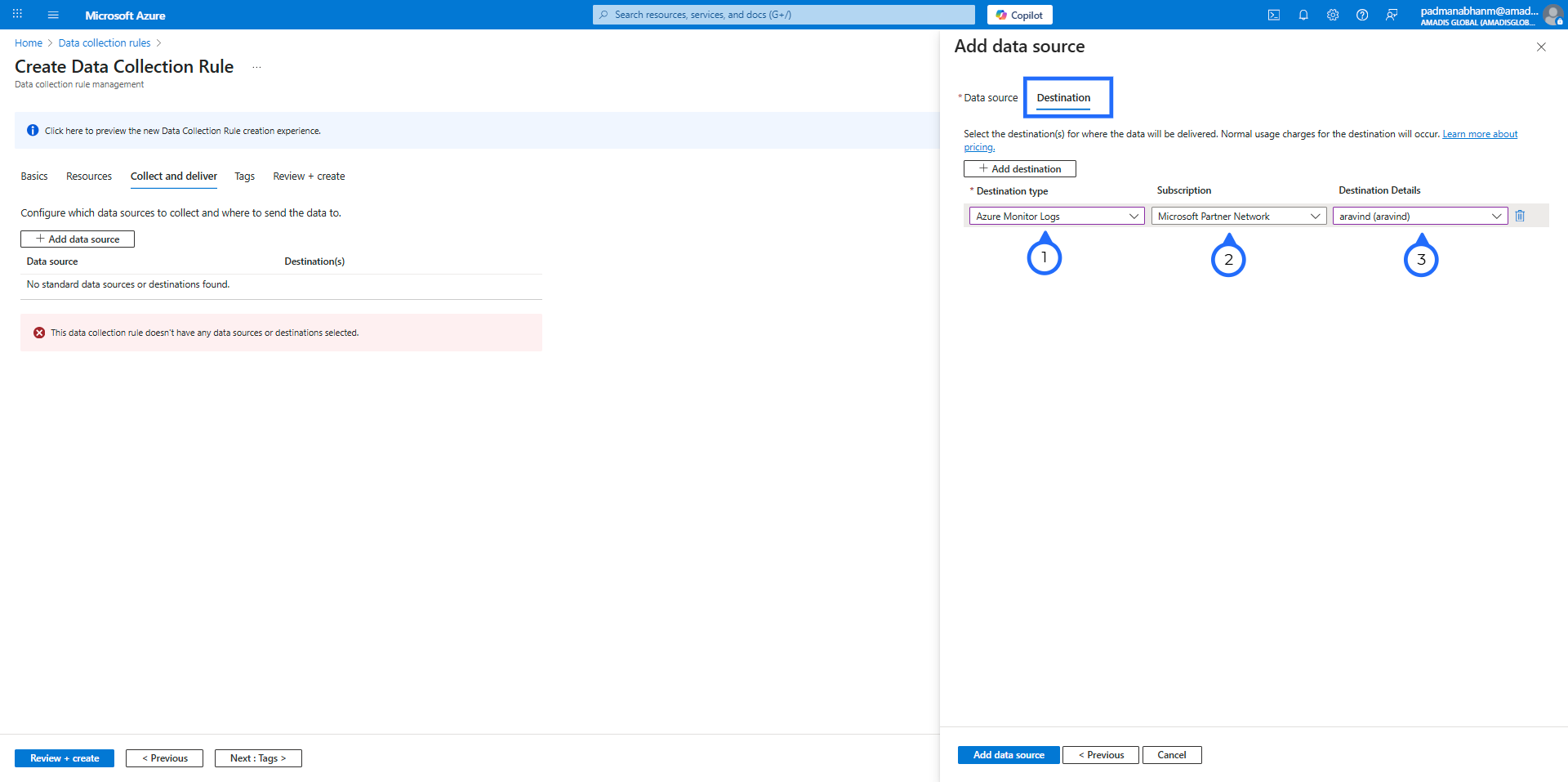
- Then click the "Destination".
- Select "Azure Monitor Logs" as the destination type.
- Select your subscription.
- Select the destination details which is the created log analytics workspace.
- And then click "save".
- Then review and create the data collection rule.